Paint.NET v3.5 Beta 1 (Build 3550) is now available!

It’s finally time for the beta, which means things are mostly done and stabilization is now the highest priority.

Go download it at the forum, or get it via the built-in updater from any Paint.NET version. Make sure “Also check for pre-release versions” is enabled – you can ensure this by first clicking Check for Updates (from the Help or Utilities menus), then clicking the Options button.

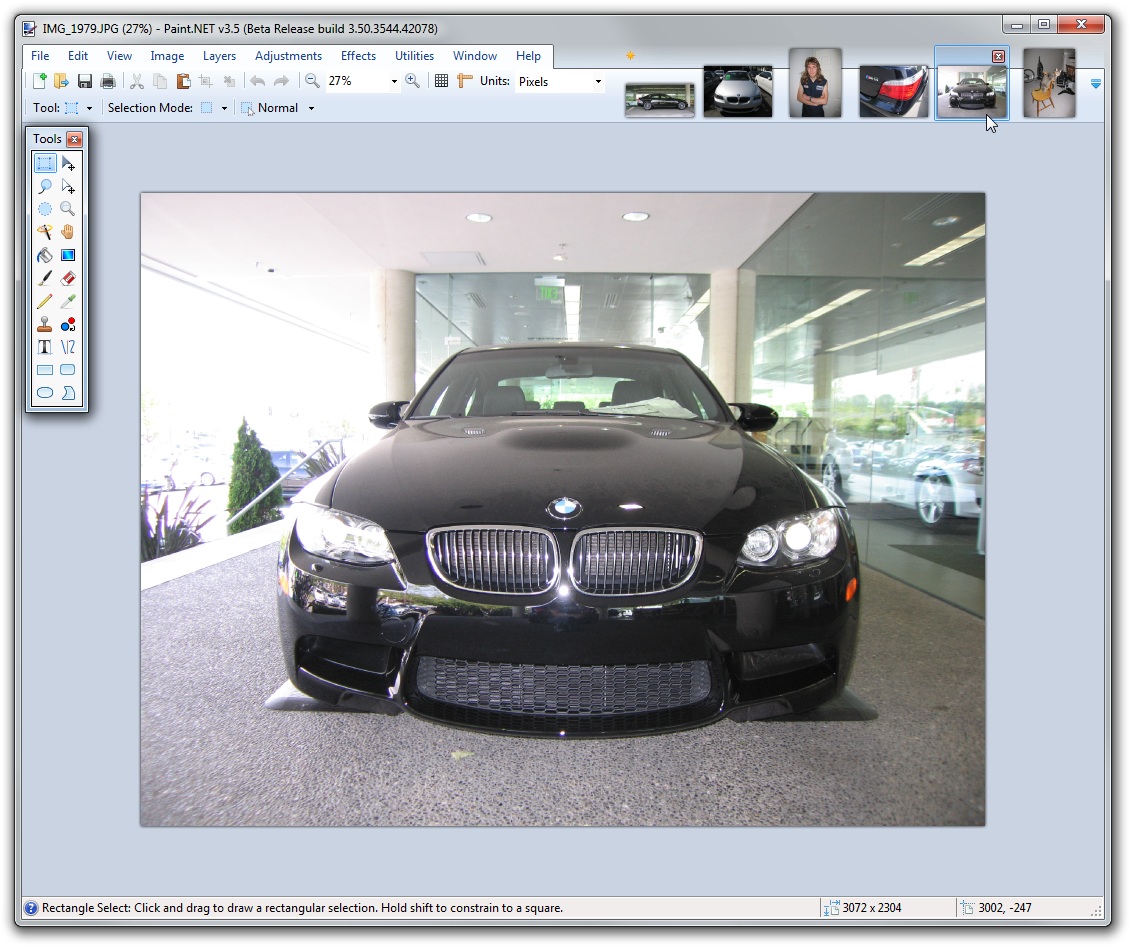
This beta is the first to include the newly refreshed user interface, with new icons and enhancements for Aero and “glass” (Windows 7 and Vista only). Here’s a taste of that:

(Click for full-size version.)

You can get the full changelist over at the forum.

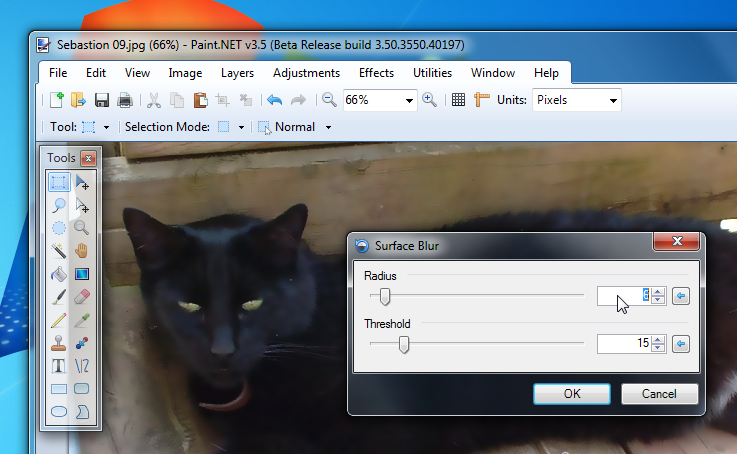
In addition to the glass in the image thumbnail list, I have added it to the footer of many dialogs. This includes the setup wizard, and dialogs for File->New, Image->Resize, Image->Canvas Size, Choose Tool Defaults, Save Configuration, Layer Properties, Rotate/Zoom, all IndirectUI-based effects (both built-in and plugins), and Help->About.

Here’s a little preview of that:

(Click for full-size image.)

Please note that if you are using the “Windows Classic” theme, or if you are running Windows XP, then Paint.NET v3.5 will look mostly the same as Paint.NET v3.36.

Also, there are some languages for which the “glass footers” will not be enabled. These include Japanese, Chinese, and Korean. The reason for this is purely technical – the text for the buttons does not render correctly. It appears that GDI+ is actually passing through to GDI when rendering those glyphs, and that causes the alpha channel to be overwritten and the text is illegible.

A real glass prototype for Paint.NET v3.5

In a much older post, I talked about how I did a small experiment with glass. And, just the other day I talked about the latest visual refresh for Paint.NET. Since then, I’ve decided that the free icons available from http://www.pinvoke.com, by Yusuke Kamiyamane, are a much better fit than those from the Oxygen or Crystal sets.

I’m also playing a bit more with glass. Check it out,

Now, of course there are still a few things to work out, such as the left edge of the menu being offset by 1 pixel.

Unfortunately, a JPEG just can’t do it justice (nor could the PNG, even at 5x the file size). It looks much cooler “in real life,” when it’s drawn over your actual desktop.

DirectWrite for Windows Vista

Paint.NET v3.5 has added support for DirectWrite, a new component in Windows 7. It improves performance, text rendering quality, and reliability when compared to GDI+ or GDI.

DirectWrite is also coming for Windows Vista. Microsoft just released a beta version of the “Platform Update for Windows Vista”, which includes Direct3D 11, Direct2D, and DirectWrite. Check it out here: http://blogs.msdn.com/DirectX/

Paint.NET will automatically use DirectWrite if it is installed on a Windows Vista system. The code for enabling DirectWrite does not limit itself to Windows 7. You don’t even have to wait for the next update, you can do this now! This is all pre-release beta stuff though, so the usual warnings apply. The next update after Paint.NET v3.5 (let’s call it v3.5.1) should automatically install this for you, so that’ll be one less thing to have to remember (computers are good at automating and remembering things, right?).

Paint.NET v3.5 prepares for beta and gets a visual refresh

I’ve been chipping away at the last changes and fixes for Paint.NET before I stamp it as beta and release it to the larger, hungrier “Beta crowd.” This update will be published to users of previous stable versions who’ve opted into public beta updates, and made available via the built-in updater. Hopefully I can finalize and push the stable version out the door to all users by the time Windows 7 hits retail shelves (October 22nd).

Now, the visual styling of an application does not affect its functionality. However, it is a key ingredient for a positive, even enjoyable, user experience. Up through version 2.5, Paint.NET used a 16-color “Windows 95” icon styling. The icons were free, and the style and color palette were very easy to emulate for any custom icons:

For version 2.6, I upgraded the whole application to .NET 2.0, 64-bit, and “Windows XP” / “Visual Studio 2005” icon styling. This was great during Windows XP’s heyday:

For version 3.0, much of the styling remained the same albeit with subtle tweaks throughout. Since version 3.36 was released in August of 2008, to borrow a phrase from Stephen King’s The Dark Tower, “the world has moved on.” It’s quickly looking dated compared to other software and graphics trends.

I decided that I wanted Paint.NET v3.5 to look more at home when installed on Windows 7 and Windows Vista with the Aero theme. To accomplish this, I needed two things: updated visual styling, and updated icons. Visual styling refers to how the menus or highlighted items are drawn, and the first part of this implementation is already in the latest, public alpha release. There are some additional styling changes that will be in the next update, and here’s a preview:

(Note that the close button is simulated in this screenshot, since it only shows up when the mouse is over an image’s thumbnail, which is not the case here. But visually, you should get the idea.)

For non-Aero themes such as Classic or Luna, simpler visual styling will be used. There isn’t enough time right now for further changes, such as glass, but I’ve definitely got it on my radar for version 4.0.

However, icons are much more difficult and time consuming to update. Paint.NET has about 200 of them throughout the application. Some icons are standard and can be used as-is from whatever icon sets I’m pulling from, such as “Open” and “Save”. Others must be formed by combining other icons. “Paste into New Layer” is a good example of this. Others must be created from scratch, such as the selection mode and many effect icons. Some icons are extremely difficult to create; the pan tool (“hand”) and lasso tool icons are easily the trickiest icons ever (yes, I made them both myself!).

Icons are a significant problem for freeware software, both financially and with respect to their creation. While Paint.NET is an image and bitmap editor, I am not an artist. Every once in awhile I can take a good photograph, but that’s an exception and definitely not the rule. Custom icons through a professional studio would several thousand dollars (USD$). Even purchasing several stock icon sets to get a large enough pool of icons to work with would cost around $2,000 USD.

There just aren’t many high quality, free* icon sets out there. For years, I have fed off the freely redistributable icons from Visual Studio and from the very popular and free famfamfam “Silk” icons. Tango is another excellent icon set with wonderful licensing (it’s public domain!), and I’ve used a small number of them for Paint.NET v3.5.

I finally found two icon sets that were free, and whose licensing and distribution requirements were acceptable. They are the Crystal and Oxygen icon sets, which are LGPL and have been popularized via software such as KDE and OpenOffice.org. I don’t use either of those, but the icons are absolutely beautiful and fit in well with the Aero theme in Windows Vista and Windows 7.

Be sure to check out the preview pages for Oxygen, and for Crystal.

With respect to Paint.NET, it’s still a work in progress, but check it out anyway:

Like I said, the authors of these icons released them under the LGPL license. To adhere to their licensing and distribution requirements (they’ve posted guidelines that were very useful), and to avoid converting the entire application to GPL or LGPL**, these icons are not being linked into PaintDotNet.Resources.dll. Instead, they are installed as “loose” PNG files in the Resources/en-US/ directory where Paint.NET is installed. Also, I will be releasing the “source code” for the icon set, which means you’ll be able to download the layered PDN sources for any icon that needed it. For example, the “Open” icon above requires a few layers to achieve contrast, and to separate the folder from the blue arrow. Et cetera. The resources DLL will contain all of the old icons, for reliability reasons. The 2nd exception in the Paint.NET license will be removed. It will also be much easier to customize Paint.NET with your own custom icon sets, although this will not be surfaced as a feature yet – for this release, it is simply a side-effect of the way that the resource manager does resource lookup and fallback.

Thinking ahead, for Paint.NET v4.0 I’m figuring out what direction I want to take the UI. My current thoughts include … glass, ribbonization, how that would work with MDI (or not), extensibility extensibility extensibility, and moving to Windows Vista as the minimum OS requirement. The latter will free me from many of the development constraints I currently have, such as not being able to use Direct2D or many of the shell-related APIs. My experience with dual-targeting GDI and DirectWrite for fonts and typography has taught me that doing something similar with GDI+ and Direct2D would be suicide. I’m only 1 guy, and I simply won’t do that.

Oh, and the tentative, nebulous, waving-my-hands release date target isn’t until 2011. So don’t worry if you’re still on XP: you’ve got plenty of time. And, I think you’ll really enjoy the upgrade to Windows 7***.

* Free in this context means 1) no cost, and 2) compatible license and distribution requirements. Licenses such as GPL are incompatible with Paint.NET.

** Ideological opinions aside, this would not be possible for logistical (legal) reasons.

*** I say this honestly, but also bear in mind that I’m a Microsoft employee so I’m probably biased.

July 2009 usage statistics

I’ve finally got a little down time since putting out another alpha build for Paint.NET v3.5 tonight (go get it!), so I decided it was a good opportunity to update the usage statistics. The last time I posted an update was last October, and that’s way too long to have gone without an update.

Overall, usage of Paint.NET is up by 9.2%. This is based on the total hits to the update manifest text files. The slow growth isn’t too surprising since there haven’t been any (stable/mainstream) updates to Paint.NET in awhile, and hence not a lot of news or blog posts to draw people to the website. That’s okay though, as version 3.5 is coming soon (more on that in a bit!).

There aren’t too many changes in the demographics of Paint.NET users. Well, the number of French users has dropped from almost 8% down to 6.8%. Turkish has grown in popularity, jumping from 3% all the way up to 4.32% – an impressive relative increase of 44%.

The thing I’m happiest about is the rapid increase of 64-bit Windows. Last October, only 2.66% of Paint.NET users were on 64-bit, but now we’re up to 5.55%. That’s more than double! Windows XP’s share has dropped from 71.65 down to 65%, and Vista has increased slightly from 28% up to 32%. Windows 7 hasn’t even hit general availability and it’s already claiming 2.6% of the user base (which is very good!). I do not have numbers for which release of Windows 7 people are using (Beta vs. RC vs. RTW).

I even ran the numbers to see how many people are using the Paint.NET v3.5 Alpha builds. So far it’s only 0.8%, but that’s perfectly fine by me. The whole point of an alpha is to start out with a small audience! Honestly I thought the number would be less. A beta release should be available soon, and that means it will be offered via the mainstream updater for users who have opted-in to beta updates. I’m sure my inbox will be flooded the next day with crash reports 🙂

I decided to make some pie charts in Excel, for fun (although the colors it chose could use some work) :


And lastly, here are the numbers:

  October 2008 July 2009
Total hits 2,728,795 2,979,631
Hits per day 88,025 96,117
     
32-bit 97.34% 94.45%
64-bit 2.66% 5.55%
     
Windows XP 71.65% 64.97%
Windows 2003 0.41% 0.32%
Windows Vista / 2008 27.94% 32.14%
Windows 7 0.01% 2.57%
     
English 43.20% 42.30%
non-English 56.80% 57.70%
German 15.79% 15.75%
French 7.98% 6.80%
Portuguese 5.85% 6.05%
Spanish 5.39% 6.01%
Japanese 2.00% 2.12%
Italian 3.09% 2.99%
Polish 1.78% 1.52%
Netherlands (Dutch) 1.53% 1.26%
Russian 4.16% 5.41%
Chinese (Simplified) 0.94% 0.83%
Chinese (Traditional) 0.63% 0.60%
Turkish 3.00% 4.32%
Korean 0.47% 0.46%
All other languages 1.34% 1.23%
     
Have translations 84.71% 83.31%
Don’t have translations 15.29% 16.69%

Bold indicates a language that Paint.NET v3.36 includes a translation for.

Paint.NET v3.5 now enhanced for Windows 7 with DirectWrite

The latest alpha build of Paint.NET v3.5 will now use DirectWrite instead of GDI for the Text tool if you are running Windows 7. Get it while it’s hot: http://paintdotnet.forumer.com/viewtopic.php?f=46&t=31132

DirectWrite is a new font and text rendering system that comes with Windows 7. In Paint.NET, you’ll see the following benefits:

  • Faster text rendering. This is currently due to important architectural differences from GDI. With DirectWrite, I can render using multiple threads (performance scaling), while also not blocking the UI thread from drawing (mutexing). GDI can only render text on 1 thread at a time, and that also includes the thread responsible for the UI. DirectWrite can also benefit from GPU acceleration when things are set up correctly with Direct2D (Paint.NET only uses the software rasterization capabilities right now, but in the future who knows!).
  • Better quality text rendering. DirectWrite implements what is called “y-direction antialiasing”. The short story is that GDI apparently only does antialiasing on the horizontal axis. It can also position characters with sub-pixel accuracy … in other words, GDI uses integers and DirectWrite uses floating point.

When it comes to performance you can see the difference just by opening Paint.NET, switching to the Text tool, and clicking on the font list dropdown. In GDI you’ll see the font previews slowly trickle into view, and scrolling can get laggy and “stalled” (the difference is very pronounced if you have lots of fonts installed – I have over 2000 on my system). With DirectWrite it’s nearly instantaneous and also very zippy when scrolling. If you type many lines of text onto the canvas, Paint.NET will use up to 1 thread per line for rendering (capped by the number of cores your CPU has), and on a dual- or quad-core system the performance benefit can add up. Systems with more cores/threads/CPUs will see the most benefit for both scenarios (yes, HyperThreading helps).

I tested on a 3.6GHz Core i7 and a 1.6GHz Atom. On both systems, DirectWrite was a big performance improvement.

Also, you can turn off DirectWrite in Paint.NET by launching the program with the /disableDirectWrite command-line parameter. This is quite useful for comparing the two renderers. If you don’t know what a “command-line parameter” is, then don’t worry about it 🙂

Thanks go out to Dwanye Robinson (at Microsoft) for helping out.

Paint.NET v3.5 – Better font handling, and performance. Again.

Last Thursday I release a new alpha of Paint.NET v3.5, build 3450. I have rewritten the way that fonts are handled for and by the Text tool. Even if you don’t use the Text tool much, you will still notice some improvements! (see the bulleted list below)

In previous versions of Paint.NET, there are two forms of text rendering supported. The first and the default is called “Smooth”, which utilizes GDI+* to render text. The second is called “Sharp”, and uses GDI. For both, GDI+ is used for font enumeration through the classes in the System.Drawing namespace. Over time, GDI+ has proven to be a poor system for font handling. It has been the cause of many crashes, as GDI+ has a tendency to crash or trample on memory when it encounters fonts that are “bad” (although bad is relative – the font itself may be perfectly fine!). This has led to some people being completely unable to use Paint.NET through no fault of their own.

As a result, I have banished GDI+ from the Text tool. The new builds of Paint.NET are using GDI exclusively for font discovery and text rendering, a change that was substantial in the amount of code that was required and the amount of research that had to be done to make sense of it all. If you’d like to get an appreciation of the depth of the subject, you should check out chapters 14, “Fonts”, and 15, “Text”, of the book, Windows Graphics Programming: Win32 GDI and DirectDraw (Hewlett-Packard Professional Books).

The new typography system in Paint.NET has been designed so that I can plug new text rendering technologies into it. Right now it only supports GDI. For the meantime this means that the choice between “Sharp” and “Smooth” is not available. My next step is to add support for two more text rendering systems, FreeType and DirectWrite (for Windows 7 users**). The former will step in to provide the “Smooth” renderer, and the latter will be added under the name “Enhanced” (or some appropriate name).

In the meantime, you’ll still realize the following benefits in the latest alpha:

  • No more “missing” fonts. GDI+ doesn’t support some fonts, notably bitmap, vector, and certain OpenType fonts. I don’t know why. You’ll notice that the new versions of Paint.NET now has a “complete” font list.
  • Improved startup performance. It’s ironic that I was telling my manager at work the other day, “Paint.NET v1.0 had poor startup performance – in fact, it was enumerating all the system fonts at system startup, but it no longer does.” Well, because of a bug in my layout code for the toolbar, Paint.NET v3.36 was still doing this! I fixed the bug, and Paint.NET v3.5 now properly defers this to later. I’ve measured the improvement in startup performance at about 15%*** on my systems, and if you have a “lot” of fonts you will no doubt see an even bigger improvement. This is in addition to the already improved startup performance of v3.5 versus v3.36!
  • Improved stability. Like I mentioned earlier, GDI+ often crashes when it runs into “bad” fonts (subject to GDI+’s definition of “bad”). Or, it has bugs that lead it to trample on memory it does not own, resulting in crashes which get attributed to the wrong code. GDI does not have this problem. Or, at the very least, if it runs into “bad” fonts, I now control the code that deals with this. I can then make it do something other than crash.
  • Installing new fonts. Previously, Paint.NET needed to be restarted for it to recognize any new (or deleted) fonts. I now place a FileSystemWatcher object on the system fonts directory and refresh the toolbar’s font list when changes are detected. There is also a shortcut in the Utilities menu to open the Fonts directory, which will be very useful for helping answer the question that is asked with surprising frequency on the forum: “How do I add fonts?”

* The Wikipedia article states that in the Windows XP timeframe, GDI was deprecated in favor of GDI+. This is not true, although it may have been the altruistic intent at the time.

** This will eventually be supported on Windows Vista as well. 

*** On my personal system, the difference is 0.577 seconds versus 0.405 seconds, as reported by Process Explorer. This is not a formal or exhaustive performance analysis. The precision and accuracy of Process Explorer is not at the millisecond level, hence me rounding all the way down to 15%. The system is an Intel Core i7 920 overclocked to 3.6GHz running Windows 7 RC build 7100. Another system, a Core 2 Quad Q6600 2.4GHz system running Windows 7, reported values of 1.0 second versus about 0.8 seconds, respectively.

Random April Thoughts

It’s April and we finally have some sun in Seattle and I haven’t posted in awhile.

Paint.NET runs pretty well with Parallels on my MacBook Pro, although there’s a few quirks to squash. Hmm … they have an affiliate program. I smell a revision to the System Requirements coming soon. Do you know how many requests I get for a Mac version of Paint.NET? 🙂

“Should Competent Programms be “Mathematically Inclined”?” — Absolutely, Jeff. I can’t believe anyone would question this. “Math is hard, let’s go shopping!” *faceplant*

Paint.NET v3.5 is coming along, but slowly. I haven’t had as much time or motivation, and it’s difficult when you don’t have a build that works because of ancillary code you broke in areas that you don’t really like (the Recolor tool comes to mind).

Blackjack is fun, especially when you’re winning.

Thank you, Akimset spam detector

One of the most popular plugins for WordPress blogs is the Akimset spam detector. Mine says it has found and squashed 93,860 spam posts since it was installed. I’m always amazed at what type of spam the robots try and sneak through every day.

Here’s a recent spam post:

“poonnnbvhifiytfyudyufydyddyufytfyufyutfyfyfyutfyfyutfyufytfytfyfyufytftyftftftftftftftttttttttttttttttttttttttttttfffffffffffffffffffffffffttttttttttttttttttttttffffffffffffffffffffffffffffffffffffffffffbut”

Thanks for the comment! I’ll be sure to raise that issue with management the next time I see them.