October 2008 usage statistics

First, I’m very glad that Obama won the election. It was the first time I’ve ever voted, in fact. I think he will provide some much needed hope and invigoration. Congratulations!

Anyway, on to the stats! I haven’t posted on this since September 2007, and it’s way long overdue for an update.

Since then, usage of Paint.NET is up an amazing 222%. Wow! Vista share has grown a lot, from about 15% all the way up to almost 28%! The share of 64-bit users has also doubled, from 1.24% to 2.66%. Windows 7 is even making a peek-a-boo appearance, at 0.01% πŸ™‚ These are all very good indicators for me. The number of Russian users has grown significantly — it used to be at 1.67%, but is now over 4.0%. Turkish share grew even more — from 0.73% up to 3.0%.

Standard disclaimer: As a reminder, these statistics represent hits to the auto-updater manifests, which means they approximately reveal the Paint.NET application’s usage (as opposed to the number of installed copies). Unless the auto-updater is disabled, it will check for updates up to once every 5 days at application startup. This is done by downloading a text file whose filename is decorated with OS and language information. Having 2.7 million hits to the manifests does not mean that Paint.NET has 2.7 million installations, or 2.7 million active users. It is merely a tool for comparing usage trends amongst different time periods (month to month, in this case).

Let’s see, some other thoughts, especially since I’ve haven’t blogged in a full month:

  • Nehalem, aka Intel Core i7. It rocks! It will be the absolute fastest chip on the planet for Paint.NET, as publicly reported by some benchmarks over at bit-tech.net. These numbers agree with what I have seen in my own benchmarking. Paint.NET loves cores, loves threads, and loves Nehalem. The 2.66ghz i7-920 will be a very popular chip over the next 3 months. I really hope the next chip generation from AMD packs a punch, to keep things interesting.
  • Windows 7. I’ve been using it a lot, and it’s awesome. I am very encouraged by the direction things are going. I watched many of the PDC sessions on what’s going on with the likes of Direct2D, DirectWrite, and Direct3D, and had to borrow a mop to wipe up my drool.
  • Windows XP. All the new graphics API’s are going to be for Vista/Win7 only. However, I obviously cannot stop support for Windows XP right now (we’ll file that under D for “duh” :)). However, its days are numbered, although it may take another 3-4 years before Paint.NET moves to requiring Vista as a minimum. The numbers you see in these usage statistics will be what drives this type of decision. I didn’t axe support for Windows 2000 until it was clear that it was at 4 – 5% and steadily shrinking.
  • WPF (versus WinForms). I’ve finally started learning it, something that I’ve been avoiding for the last 2 years, partly because it was still very much a “version 1” technology. So far I’m really liking it, and the support for custom pixel shaders is a major enabler. It is now possible for the entire Paint.NET rendering pipeline, including all of the layer blending modes, and including all adjustments and effects, to be done completely on the GPU without resorting to Direct3D or CUDA interop muck. Now if only it had Direct3D 10 and Pixel Shader 3/4/5 support (it only supports D3D 9 and PS 2.0 right now).
  • Fallout 3. It’s very good, and I highly recommend it.
  • Paint.NET v3.5. Don’t worry, it’s not been forgotten about πŸ™‚ I have, however, been taking things “easy”. I was a bit burnt out for awhile, and I just started a new job within Microsoft, so it will not be available in time for the holidays. There are three major work items to complete: a better front-end rendering cache, a rewritten selection outline renderer that does not use GDI+, and final translations.

Here are the numbers:

Total hits 2,728,795
Hits per day 88,025
   
32-bit 97.34%
64-bit 2.66%
   
Windows XP 71.65%
Windows 2003 0.41%
Windows Vista / 2008 27.94%
Windows 7 0.01%
   
English 43.20%
German 15.79%
French 7.98%
Portuguese 5.85%
Spanish 5.39%
Japanese 2.00%
Italian 3.09%
Polish 1.78%
Netherlands (Dutch) 1.53%
Russian 4.16%
Chinese (Simplified) 0.94%
Chinese (Traditional) 0.63%
Turkish 3.00%
Korean 0.47%
All other languages 1.34%
   
Have translations 84.71%
Don’t have translations 15.29%

Bold indicates a language that Paint.NET includes a translation for.

Other disclaimers:

  • I own stock in AMD, Intel, and Microsoft.
  • I am a Microsoft employee. What I say here is my personal opinion, and not necessarily that of my employer.

Change of plans – here comes Paint.NET v3.5

The features that I want to implement for Paint.NET v4 are easily going to take another 6+ months to finish. However, I really want to get the improvements I’ve already made into the hands of users (that’s you!). I’d also like to get everyone updated to a newer version of .NET (right now Paint.NET v3.36 only requires .NET 2.0). If I wait another “6+” months, then it will be almost time for .NET 4.0 and I don’t want to deal with two big .NET upgrades in the same short period of time — or worse, face the indecision of “release now or in another 6 months after the new .NET is out…”.

After some discussion and debate with some forum members and moderators, I decided that I would go ahead and release the work I’ve done so far on Paint.NET v4 as Paint.NET v3.5. This would entail wrapping up all the current loose ends (fixing “new” bugs), finishing the last few work items, getting translation done, and releasing a few betas.

So here’s what to expect for Paint.NET v3.5:

  • Now uses, and requires, .NET Framework 3.5 SP1 (This also means that plugins can use .NET 3.5 SP1 features!)
  • New effect: “Surface Blur”, by Ed Harvey. It’s another good tool for noise reduction.
  • New effect: “Dents”, by Ed Harvey.
  • New effect: “Crystalize”, by Ed Harvey.
  • New file type support: HD Photo (or whatever the latest name for it is)
  • The auto-updater now lets you choose to have an update downloaded in the background and then installed once you exit Paint.NET. (A lot of people are going to like this feature!)
  • Moved “Language” and “Check for Updates” to the new Utilities menu
  • Reduced memory usage, especially when multiple images are open.
  • Improved rendering quality when zoomed in.
  • Greatly improved performance when opening and closing images.
  • Improved the installer UI by removing the “popup” progress windows.
  • “Optimizing performance” section of installer now gives actual progress instead of using the ambiguous “marquee” mode.
  • Installation is much simpler if the .NET Framework isn’t installed yet, or if it needs to be updated.
  • A CPU with SSE support is now required, such as an Intel Pentium III, or AMD Athlon XP, or newer.
  • Many miscellaneous bug fixes, as usual.

This is actually a fairly significant update to Paint.NET, although most of the changes are “under the hood.” Getting this released sooner will help make sure that when Paint.NET v4 does roll around that more of the new technology has been shaken free of bugs. The system requirements will be the same as what I posted last week for Paint.NET v4.

Paint.NET version 4.0 system requirements

The system requirements for Paint.NET version 4.0 will be increased slightly, although it shouldn’t affect many people.

Here is what version 3.36 requires:

  • Windows XP (SP2 or later), or Windows Vista, or Windows Server (2003 SP1 or later)
  • .NET Framework 2.0 (recommended: .NET Framework 3.5 SP1)
  • 500 MHz processor (recommended: 800 MHz or faster)
  • 256 MB of RAM (recommended: 512 MB or more)
  • 1024 x 768 screen resolution
  • 200+ MB hard drive space
  • 64-bit support requires a 64-bit CPU that is running a 64-bit version of Windows, and an additional 128 MB of RAM

And here’s what I’m planning for version 4.0:

  • Windows XP (SP2 or later), or Windows Vista, or Windows Server (2003 SP1 or later)
  • .NET Framework 3.5 SP1
  • Intel Pentium III, or AMD Athlon XP, or any newer CPU with SSE support (recommended: any dual-core CPU)
  • 256MB of RAM in Windows XP (recommended: 512MB or more)
  • 768MB of RAM in Windows Vista (recommended: 1GB or more)
  • 1024 x 768 screen resolution (recommended: 1280×1024 or larger)
  • 200+ MB hard drive space
  • 64-bit mode requires an additional 256MB of RAM, a 64-bit CPU, and a 64-bit edition of Windows

The biggest changes are the .NET 3.5 SP1 and SSE requirements. Requiring SSE simplifies a few things with the native code, and makes things a lot faster as well (especially for DDS file saving). Since the Pentium III is 9 years old, and the Athlon XP is 7 years old, I figured it was safe to do this. All 64-bit processors support SSE2, and so this is made use of then. It’s rather interesting to have the C++ compiler output the .asm files for GPC and to see how much SSE2 is part of the instruction mix (quite a lot!).

I’m not requiring any newer service pack levels, such as XP SP3 or Vista SP1. I don’t really see any need to. This probably won’t change until .NET itself requires something newer.

I’m not finding that I need to increase the memory requirement at all. In fact, technically the amount of required memory may go down with the changes I’m making to the rendering system. Less memory is always a good thing πŸ™‚

So, let me know if you think any of this will be a problem for your deployment or installation. Also, bear in mind that the only “hard” requirements are XP SP2, .NET 3.5 SP1, and SSE support. By “hard” I mean they are the only ones I actually enforce in the installer and at application startup.

Paint.NET and Performance — Thumbnails

One thing I’ve always had fun with in client development is performance. Paint.NET is quite heavily optimized for a short startup time, as well as for multicore for various rendering kernels (and for the effect system in general). So when I see a comment like this over on BetaNews

Reviewer: Galifray
It’s a good, strong program, but it has some flaws that have not been fixed. On slower systems, like mine, it can take ten or more seconds to open images, regardless of the image’s size. The program simply hangs with a busy cursor until it’s finally ready. This is a real annoyance when I’m attempting to open several images at once, or I’ve pasted content into a new image.

… it saddens me a little, and I immediately want to fix it πŸ™‚ I personally hate it whenever a program has a busy cursor for no reason that I can discern. In fact, I know exactly what’s causing this. When Paint.NET loads an image, it immediately generates two thumbnails. The first goes into the File->Open Recent menu (I still don’t know why no other imaging application does this! CS3 just dumps a list of files! update: apparently GIMP does this!). The second goes into the image thumbnail list in the the top-right of the window, and is something that is continually updated as you work on or change the image.

The problem is that Paint.NET is waiting for both of these thumbnails to be created before letting go of the “busy” cursor and allowing you to actually do anything. It isn’t something you’ll really notice on a dual- or quad-core system, and since I haven’t had a single-core system in 5 years I’ve never put much thought into it. Plus, the desktop market is increasingly not single-core (even $50 Celerons are dual-core now), so part of me has dismissed it as a problem akin to dial-up versus broad-band: over time, it just fixes itself.

I decided to fix this anyway, as it would make the application faster and more responsive for all systems, as well allow me to brush up on some asynchronous programming in a relatively safe area of the code. In order to fix the problem, I first needed to recreate and empathize with the situation. My development box has quad-cores* and 8 GB, which basically means I’m on a totally different planet than most users. I scrounged up some old computer parts and, voilΓ , I now have a good low-end bread-boarded system for performance testing:

It’s a Pentium 4 at 2.26 GHz with 2 GB of DDR400 memory running in single channel DDR266 mode. The board is an Intel 865 “PERL” and supports dual channel DDR400, but I specifically wanted the lower performance of single channel mode. I also have a 2.8 GHz Pentium 4 chip with HyperThreading so I can test how that extra hardware thread affects things. (For this scenario, it actually makes a huge difference!). I installed Windows XP SP2, and then Paint.NET v3.36, and opened up a bunch of images: sure enough, the performance sucked. I now have the empathy I’d been seeking.

Anyway, back to the problem at hand. There are at least two more places where thumbnail synchronization happens in Paint.NET v3.xx. The first is when you open the “image list menu” (press Ctrl+Q): it will wait until all thumbnails are up to date before showing you the menu.

The second is when you close a single image that has unsaved changes. If the thumbnail isn’t up to date, this dialog will not show until it is.

The wait to bring these up can be significant in certain pathological scenarios, involving very large images, slower systems, or priority inversion (the thumbnail generator thread runs at low priority). Contrast to the multiple image version of the Unsaved Changes dialog, which doesn’t wait for thumbnails and adds them to the dialog as they finish rendering. The dialog comes up immediately even if you have 100 images open that all have unsaved changes.

I want and need Paint.NET v4 to be responsive at all times. The response time of the application should not be [linearly] proportional to the size of the data being manipulated, or to the latency of retrieving/computing that data. The example I always give to help explain this is Google Maps / Live Search Maps. When you scroll around, it doesn’t jitter around while it downloads any specific tile. Instead, it gives a generic tile that effectively signals to the user that it is still being downloaded. Client applications should also strive to this level of responsiveness. To accomplish this requires a lot of asynchronous programming, and this was a good place to get started.

So, in the current Paint.NET v4 codebase, I’ve made the following changes:

1) For the Open Recent thumbnail, it is offloaded to a background thread. Since it’s possible for you to open up this menu before the thumbnail is done, it currently just has a “blank” thumbnail if you’re that quick. This has created another race condition that I plan to deal with later. For example, if you’re quick you can scribble on the image you just loaded and that scribbling will then show up in the Open Recent menu. Woops πŸ™‚ This will be fixable once I make changes to the read/write model employed by the data layer.

2) For the image thumbnail list in the top right, I’m removing all code that “synchronizes” on it. There is a little “busy” animation for when the thumbnail is being generated for the first time (thank you Tango).

3) For the image list menu (Ctrl+Q), if a thumbnail isn’t available yet then it will just show a blank thumbnail.

4) For the unsaved changes dialog, it will use the same trick as the image thumbnail list: a “busy” animation while the thumbnail is being generated. It will never block on this, so if you are faster than the thumbnail rendering then you will save a  few precious seconds. This required adding support to my Task Dialog so that it could support an animation and not just a static image.

The Layers window does not yet have the animation for a thumbnail that isn’t ready yet.  I’m planning to do significant work in that area later, and so I’ve saved this work for then. And I definitely need to write some classes so that I can support animations in the UI a lot better. Right now each occurrence is manually setting up timers, etc.

The result? In Paint.NET v3.36 on that 2.26 GHz Pentium 4, it takes 28 seconds to load a batch of eight 7 megapixel images. There are also periods of time where it appears to “stall” for no good reason. Paint.NET v4 does it in 16 seconds, and has none of the obnoxious stalls. You just end up with several thumbnails in the top-right window that show up as “busy” animations until the thumbnails have finished rendering, during which time you’re free to do whatever you want. As a bonus, performance is also noticeably faster on my quad-core development box.

My ad-hoc Pentium 4 box is proving to be quite useful for performance testing. Over the last few days, Paint.NET v4 has significantly improved in performance. I’ve so far rewritten the front-end of the rendering engine, and had to come up with some interesting tricks to keep the performance good. The first revisions of this code were plenty functional, but very naive from a performance standpoint.

* Until Nehalem comes out, that is. Then it’s time for a dual Xeon box. Sixteen threads!

Setup authors: Make sure "TrustedInstaller" is enabled

Scott Hanselman had the idea that him and I should get together and put together all the best practices for writing installers, specifically for .NET applications. Clearly this is a good idea, although it’s one where all the information is difficult to organize since it’s never really come together at any single point in time (at least, for me!). So, I will periodically post things that I’ve had to deal with in my installer, and eventually we’ll get around to organizing it all. Hopefully πŸ™‚

Today’s post will cover a difficult to diagnose problem you may run across if you are installing side-by-side assemblies ("SxS") in Windows Vista. Note that in this case "assembly" doesn’t refer to a .NET assembly, but rather a "native" assembly installed into the side-by-side repository. You can poke around in it by going to C:\windows\winsxs. Even if you aren’t explicitly installing SxS assemblies, something else you depend on may be.

Anyway, Paint.NET version 3.10 incorporated Dean Ashton‘s DDS file type plugin, which makes use of Simon Brown‘s "Squish" library. The latter is written in C++ and sits in three DLL’s: one each for x86, x86 with SSE2, and x64. I added some multithreaded optimizations to the Squish code which then pulled in a dependency on OpenMP — something that had to be installed into the SxS repository. Visual Studio automatically figured out what to add to my MSI in order to get things installed right, so that part was easy enough.

Most applications out there won’t need to install OpenMP, but they quite often need to install things like the Visual C++ Runtime DLL’s. And if you’re installing the .NET Framework, then that installer has things it puts into the SxS cache as well.

Some people started reporting some problems when installing. They were all able to give a screenshot that showed a wonderfully cryptic error message:

"An error occurred during the installation of assembly ‘Microsoft.VC90.OpenMP,version="9.0.30729.1",publicKeyToken="1fc8b3b9a1e18e3b",processorArchitecture="x86",type="win32"’. Please refer to Help and Support for more information."

(Side bar rant: Why do these errors always say to refer to Help and Support? It never has any useful information!)

This then caused the generic 1603 "setup failed" error. They were always running Windows Vista, and I had no idea what was going on here. Fortunately a member of the forum, "wolf5", managed to find the solution, although it was several months after the problem was originally discovered:

I found a solution that might be the fix:

Go check in windows services that the service named "Windows Modules Installer" is up and running. Mine was disabled. Enabling it removed the VC90 error. ( i also had problems with windows update because of it and a few other VC90 installations ive tried (vcredist_x86.exe for vs.net 2008).

I don’t know why the service was set to Disabled, but my guess is that some "tweak" program was used or they followed the advice of one of those "optimization" guides. In any case, it doesn’t matter – it’s their computer and their business. "Windows Modules Installer" is better known by its EXE’s name: TrustedInstaller, and if it’s disabled then even things like Windows Update will have trouble working right.

Why can’t we be proactive about this? Anything I can do to easily improve the success rate of my installer is something I should probably do. My setup wizard is written in C#, but it is launched from a small EXE written in C called SetupShim who’s job is to check for major dependencies like Windows Installer and the .NET Framework. If TrustedInstaller is disabled, then those installers will fail as well, and so that’s ultimately where I needed to place the fix.

Fortunately this is very easy to do. All you need to do is call into the SCM (Service Control Manager), query the configuration for Trusted Installer, and then set it to Manual if it’s in the Disabled state.

Here’s the C code for ensuring that TrustedInstaller is running before you launch into your install flow, written in good old fashioned C. It requires administrator privilege to succeed.


hr = EnsureServiceIsNotDisabled(L"TrustedInstaller");

HRESULT EnsureServiceIsNotDisabled(const WCHAR* szServiceName)
{
    HRESULT hr = S_OK;
    DWORD dwError = ERROR_SUCCESS;
    BOOL bResult = TRUE;

    // Open SCM
    SC_HANDLE hSCManager = NULL;
    if (SUCCEEDED(hr))
    {
        hSCManager = OpenSCManagerW(NULL, NULL, SC_MANAGER_CONNECT);

        if (NULL == hSCManager)
        {
            dwError = GetLastError();
            hr = HRESULT_FROM_WIN32(dwError);
        }
    }

    // Open service
    SC_HANDLE hService = NULL;
    if (SUCCEEDED(hr))
    {
        hService = OpenServiceW(hSCManager, szServiceName, SERVICE_QUERY_CONFIG | SERVICE_CHANGE_CONFIG);

        if (NULL == hService)
        {
            dwError = GetLastError();
            hr = HRESULT_FROM_WIN32(dwError);
        }
    }

    // Query the service’s configuration
    BYTE rgbQueryServiceConfig[8000];
    ZeroMemory(rgbQueryServiceConfig, sizeof(rgbQueryServiceConfig));
    QUERY_SERVICE_CONFIG *pQueryServiceConfig = (QUERY_SERVICE_CONFIG *)rgbQueryServiceConfig;

    if (SUCCEEDED(hr))
    {
        DWORD dwCbBytesNeeded = 0;
        bResult = QueryServiceConfigW(hService, pQueryServiceConfig, sizeof(rgbQueryServiceConfig), &dwCbBytesNeeded);

        if (!bResult)
        {
            dwError = GetLastError();
            hr = HRESULT_FROM_WIN32(dwError);
        }
    }

    // If the configuration is Disabled, then set it to be Manual
    if (SUCCEEDED(hr) && SERVICE_DISABLED == pQueryServiceConfig->dwStartType)
    {
        bResult = ChangeServiceConfigW(
            hService,
            SERVICE_NO_CHANGE,
            SERVICE_DEMAND_START, // "Manual"
            SERVICE_NO_CHANGE,
            NULL,
            NULL,
            NULL,
            NULL,
            NULL,
            NULL,
            NULL);

        if (!bResult)
        {
            dwError = GetLastError();
            hr = HRESULT_FROM_WIN32(dwError);
        }
    }

    // Clean up
    if (NULL != hService)
    {
        CloseServiceHandle(hService);
        hService = NULL;
    }

    if (NULL != hSCManager)
    {
        CloseServiceHandle(hSCManager);
        hSCManager = NULL;
    }

    return hr;
}

And that’s it. You’ve now increased the success rate of your installer by a fraction of 1%. (It’s always that fraction that’s important though!)

Experimenting with Vista Aero/Glass

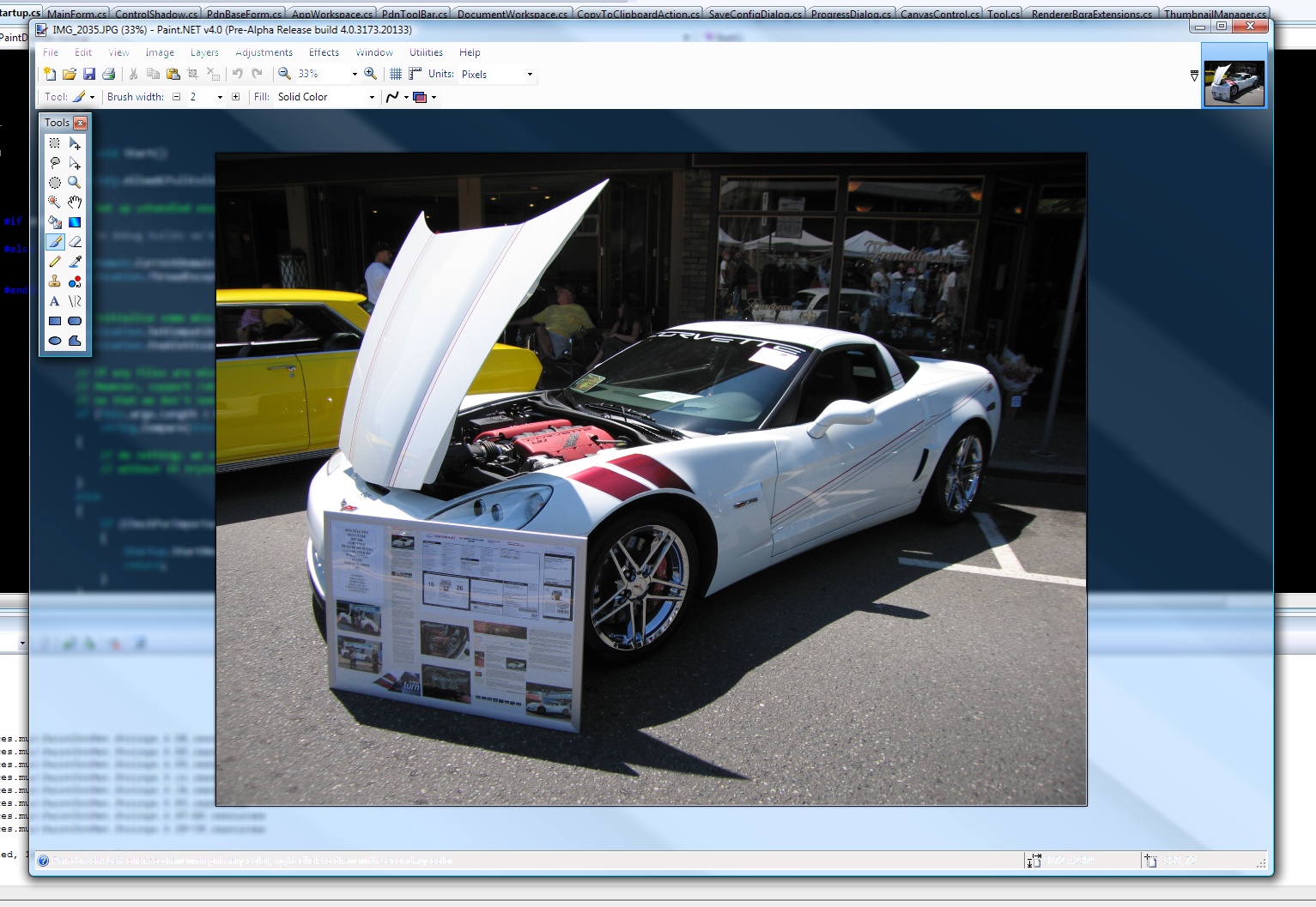
It’s a very cool effect to extend glass into the non-client area, but it looks like GDI’s ClearType text rendering is obliterating the alpha channel. Thus, all text is essentially see-through. I don’t know of a way to tell the DWM to exclude certain areas from "glassification", you can essentially only give it 1 rectangle.

(Click for full size version)

So if I want to do something with glass it’ll take quite a bit of effort — maybe I’ll wait until a later milestone πŸ™‚

Anyway let me know what you think. I do have plans for a visual "facelift" for Paint.NET v4. The first thing I’ve done is add a little gradient to the thumbnails in the image list at the top right (which took all of 5 seconds to implement, then 5 minutes to tweak the alpha values so it didn’t look wonky).

Beware of fake Paint.NET releases – or, there is no 4.0 yet!

I just received an e-mail from BetaNews this morning,

Rick,

Someone just submitted an 4.0 Alpha of Paint.NET. Do you want us to post this release? We would of course not post it over top of v3.36, but we would post it as a seperate release.

Let me know.

Thank you

Well, that was strange — I haven’t publicly released anything! I have some people on the forum doing some private testing on the install/update changes, but nothing too exciting. So I wondered if one of them leaked it (they didn’t), and inquired further.

As it turns out, there’s another download site that’s hosting a file called "Paint.NET.4.00.Alpha.rar," no doubt based on a trusted user submission. This was then simply forwarded to BetaNews.

So I downloaded the file and pawed around, although I did not run the EXE inside of the RAR. Here’s what I found:

  1. The file size was wrong. Like I said in my previous post, the installer is currently 3.7mb. I really doubt that RAR can compress a heavily LZMA-compressed archive down by another 25%. (Or vice versa)
  2. The file name was wrong. "Paint.NET.4.00.Alpha.exe" is a good guess, but you can see even from the screenshot in my previous post that the file name I’m using is actually "Paint.NET.4.0.Install.exe" (I would put an Alpha in there for an Alpha release though, of course).
  3. The file version of the EXE was wrong. The real one would say 4.0.0.0 for the EXE-inside-the-ZIP. This one was 0.0.0.0.
  4. And here’s the kicker, the file wasn’t digitally signed by me. In fact, it wasn’t signed at all!

The first 3 can be faked easily enough, and I’m not worried about divulging that information. The last one cannot be faked*.

My conclusion was that it’s probably a virus, and so I told BetaNews not to publish the file. If it was a leak, that would be annoying but at least it would be reasonably "safe" (plus it would expire soon anyway, limiting the "damage").

So, how do you verify that you have a "genuine" Paint.NET installer? It all comes down to the 4th one: the digital signature. I sign every release of Paint.NET with a certificate that has the dotPDN LLC name on it. It will show up all throughout the process of downloading and installing it, because Windows and Internet Explorer like to remind you about it about 5 times.

Although, as a digression, the best way to make sure you have a "genuine" Paint.NET installer is to simply go to http://www.getpaint.net/ and go from there.

Anyway, when you run the installer EXE in Windows XP, you will get a dialog like this: (assuming you downloaded the ZIP from the website and ran the EXE from there — using something like WinRAR / WinZIP might not result in this)

Note how it highlights the Publisher name, which is dotPDN LLC. If you click on the name, you’ll get a dialog titled "Digital Signature Details". It should say, near the top, "This digital signature is OK." This is the same dialog you’ll see a little later in this post.

In Windows Vista, UAC will help you out here. You’ll get a dialog like this when you try to run the installer:

The dialog states "dotPDN LLC" again, and has the neutral colors as opposed to the big yellow warning version of the UAC dialog.

You can also verify the signature before you launch the program, which is of course a good thing. You want to get the installer EXE unpacked somewhere, then right click and go to Properties:

Next, go to the tab named "Digital Signatures." If there is no such tab, then the file is not signed and you’re done — the file is not from me, or is corrupted/incomplete somehow. You sould see an entry for dotPDN LLC:

Go ahead and click the "Details" button for the final step of verification:

The key here is "This digital signature is OK." At that point you know the file is "genuine", and neither corrupt nor incomplete.

And hey, if someone says, "Hey I found an alpha of Paint.NET version 4.0!" the first thing you should do is go to the Paint.NET website. If it’s not there, then it’s not real!

And yes, I’ve informed the other download site that the "Paint.NET 4.00 Alpha" is probably a virus and that they should remove it.

* Well, I shouldn’t say it can’t be faked. No doubt someone will hack around and prove me wrong eventually. For now though, it’s a fairly safe statement to make.

Paint.NET v3.36 is now available!

This is mostly a servicing release to make some small improvements and to fix a few important bugs.

You can get it via the built-in updater by going to Help -> Check for Updates, or by going to the website: http://www.getpaint.net/

Enjoy!

List of changes:

  • Improved: Effect rendering should be a little faster now.
  • Changed: Implemented some changes to the "Add Noise" effect that were suggested by a forum member.
  • Changed: The canvas background color is now always #c0c0c0.
  • Changed: The auto-updater should now correctly detect .NET 3.5 and newer, which will help to save bandwidth when Paint.NET v4.0 is released (it will require .NET 3.5).
  • Fixed: Paint.NET now works on a system that has the .NET 3.5 SP1 "Client Profile" installed.
  • Fixed: When zoomed in and the cursor is to the top-left of the image (negative coordinates), the ruler is now highlighted in the correct area. Fixed: The effect rendering system no longer sets the "Tag" property on the configuration dialog.
  • Fixed: Some incorrectly authored plugins would cause a crash when loading their support details (author, copyright, etc.).
  • Fixed: There was a bug in the color wheel for IndirectUI that caused it to show the wrong values at initialization.
  • Fixed: There was a performance problem for effects that used the IndirectUI color wheel control.
  • Fixed: In some rare cases, Paint.NET would crash while shutting down.
  • Fixed: When using the "Fixed Ratio" feature of the Rectangle Selection tool, it would crash if 0 was specified for both the width and height.

The Paint.NET install experience — Part 2, version 4.0

In my previous post I detailed the epic adventure of a normal user installing Paint.NET v3.xx on a "fresh" XP SP2 computer. I also said that I’ve made it a lot easier in Paint.NET v4. Let’s check it out:

Again, from the top, the user has excitedly downloaded the Paint.NET installer, and goes to double click on it …

The first thing we get is a dialog telling the user what’s going to be installed. Since this is a fresh XP SP2 box with no updates installed yet, they will need Windows Installer 3.1, .NET Framework 3.5 SP1, and of course Paint.NET. Compare this to the old dialog that tells the user what they need, and barely helps them to get it all.

Once the user clicks OK, the Windows Installer 3.1 package will be installed in automatic ("passive") mode. Installation will begin immediately, and the user will not need to click on any "Next" or "Finish" buttons. It will close once it’s done.

It installs fairly fast, and that’s good because most people will have no clue what any of the stuff on the dialog means.

Next, the .NET Client Profile package will also be installed in automatic ("passive") mode. Installation begins immediately — there’s no need to futz with buttons saying Accept, Next, or Finish, and it closes once it’s done.

This part can take awhile depending on your Internet connection, and I really wish they had a better UI to indicate this. The alternative is to add tens of megabytes to the download ZIP. I haven’t customized the graphics in the .NET Framework Client Profiler installer yet, but I plan to in order to make it more apparent that this is part of the Paint.NET install flow.

Finally, the Paint.NET v4 installer is launched! Ok, now the user finally has to worry about buttons saying Next, Accept, and Finish.

Note that the header graphics are just placeholders, I’m still figuring out what exactly I want there. I need a good "night" picture to put behind the white-text version of the logo πŸ™‚

The installation progresses …

By the way, the "optimizing" portion of installation is much faster now with .NET 3.5 SP1 because of improvements to NGEN.

Once the user clicks "Finish" on the last page of the installer, they will be asked to reboot. This is because Windows Installer 3.1 requires it. (Remember, this blog post details installation on a "fresh" XP SP2 system! Most users will not have to worry about this rebooting nonsense.) I’ve written my install flow to only require a reboot at the very end of all the installations. Rebooting in the middle causes a lot of continuity problems and is a horrible user experience. Most systems won’t have to reboot though, as Microsoft has done a pretty good job of not requiring it for .NET itself. The v3.xx releases of Paint.NET actually cheat here and simply tell the user they should restart. Most people don’t see this, or ignore it, and it actually causes crashes and whatnot. So, yes, a new feature of Paint.NET v4: a reboot dialog! You heard it hear first! πŸ™‚

And there you have it. Once the user has their hands on the Paint.NET v4 installer, that’s all they have to figure out. The rest is done for them. Once they restart, they’ve got Paint.NET installed. No ifs, ands, or buts. The barrier to entry for Paint.NET has been dramatically reduced.

So far the Paint.NET v4 download is about 3.7MB and includes Windows Installer 3.1, .NET Framework 3.5 SP1 Client Profile bootstrapper, Visual C++ 2008 SP1 runtimes (x86 and x64)*, the OpenMP redistributable (x86 and x64), and of course Paint.NET. I’ve done a lot of work and experimenting to figure out the best way to pack things together to get the smallest download possible — that 3.7MB actually expands to over 20MB in the temp directory!

Anyway that’s enough on the installer for now. My next chunk of work on Paint.NET v4 is in the guts of the rendering engine with the goal of dramatically reducing the memory footprint, and increasing rendering throughput on many-core (4x and up) systems.

* Version 3.xx uses the static versions of the runtime. Using the DLL version is preferred, for various reasons, and so I decided that Paint.NET v4 would finally switch to it.

The Paint.NET install experience — Part 1, version 3.xx

Note #1: This blog post is fairly long because it is image intensive. The point is to illustrate what a massive task this is πŸ™‚ Don’t worry though, I ran the images through PNGOUT.

Note #2: If you haven’t already done so, I highly recommend that you go and install .NET 3.5 SP1 immediately!

Ok. I’ll admit it: getting Paint.NET v3.xx installed for many users is a massive chore. If you take a normal user, they almost certainly don’t have the .NET Framework installed. If it’s a newly formatted or purchased computer, it might even be a "fresh" XP SP2 installation that doesn’t even have Windows Installer 3.1 installed (which the .NET Framework requires).

One of the most educational things I ever saw was on Google Video called, "Paint.NET Install Part 1" (there’s also a part 2!). First, why should a tutorial be necessary? I should make my installer so easy as to make that completely unnecessary. Second, it was very enlightening to watch where the guy fumbled or was confused by things. I highly recommend watching that tutorial video if you want insight into just how unfriendly installing a .NET client application can be. (Note that I’m not trying to disparage the author of that video at all!)

Anyway, back to the blog post. Let’s journal a normal user’s adventure toward installing Paint.NET v3.xx. This user will excitedly download the 1.6MB Paint.NET v3.35 installer only to be bombarded with ridiculousness:

"Hi, I’m the Paint.NET installer. Hey, you need to install .NET — go here to download it!"

Ok, so the user goes to the website, fumbles around, clicks "Download" …

Then they click Open, and then … "Hi, I’m the .NET installer. You don’t have Windows Installer 3.1, come back when you do!"

(Why can’t it just download it for them?) When the user clicks "Exit Setup," they are left at a blank desktop. I think the next thought they have will be, "Huh? Now what?" But hey, let’s see what happens if the user gains psychic abilities and manages to find this mystical "Windows Installer 3.1" :

Forget for a moment that nobody other than people like myself and Scott Hanselman even know what "redistributable" even means (yes, I’ve had friends/family ask me if they are downloading the "right" thing as they were confused by what-in-the-world a "redistributable" was). So they managed to download it from the very unintuitive download page…

The user clicks next and continue a few times … and they got it installed! But what’s this?

They have to restart. Boo. Let’s assume the user manages to restart now and remember to come back to installing Paint.NET.


"Please wait forever."

The user is once again at a blank desktop. Is Paint.NET installed? Where is it? Well, hmm, it isn’t installed. Let’s assume the user once again harnesses their psychic power and double-clicks the Paint.NET download again (or, just as likely, they re-download it from the website).

Argh! I thought I already did that! Ok. The user channels their psychic powers to once again run the .NET installer …

Not that the stuff on this dialog box makes any sense to a normal user … but most people have gotten used to clicking "Accept" and then "Next". Although the download time estimate of 2 hours is quite a turn-off.


"Please wait forever."

Yes, please wait forever. Hope you aren’t on dial-up! Next, .NET is done installing:

If the user is really unlucky at this point, then another reboot will be required.

So … is Paint.NET installed? Hmm, where is it … I can’t find it. I’ll tap into those psychic powers and double click the Paint.NET installer again (this is the 3rd time!).

Oh thank goodness! Although then they get this fun part, which with a fresh .NET installation can actually take quite awhile (it actually times out after 4 minutes):


"Please wait forever."

Other than that installation generally goes smoothly, and then the user has Paint.NET installed.

Updating it at this point is fairly painless and easy. It only took like 6 downloads*, 3 setup wizards, a reboot, and about 1 hour of time… I’m almost amazed that any Windows XP users have managed to install Paint.NET at all. Or any .NET client software for that matter.

This whole process is no big deal for someone like myself, as I already know what needs to be installed and exactly where to click on things (relative to the normal user, I am "psychic"). But when’s the last time you met someone outside of Redmond who really knows and cares what "Windows Installer" is?

Anyway, in the next post I’ll detail how much better Paint.NET v4 is for this important deployment scenario. It’s a combination of a much smarter installation package and the new .NET 3.5 SP1 Client Profile.

* Assume that the user is not perfectly organized and just re-downloads the Paint.NET and .NET Framework installers whenever prompted to, as opposed to keeping them in a "Downloads" folder and remembering their names and which ones to click on at the right moments. This is actually quite normal! πŸ™‚