paint.net 5.0.8 beta build 8611

This is a hotfix for 5.0.8 beta (build 8610) that fixes a crash when adding layers. That build’s release notes are copied here for convenience:

The biggest visible change in this release are some touch-ups to the Colors window. The Primary/Secondary dropdown has been removed, and instead the color boxes themselves will indicate which is the active color. In addition, inconsistencies with left/right clicking for selecting colors have been ironed out. The Colors window will also remember whether it was expanded (More vs. Less) across app sessions.

image.png

This build is available via the built-in updater as long as you have opted-in to pre-release updates. From within Settings -> Updates, enable “Also check for pre-release (beta) versions of paint.net” and then click on the Check Now button. You can also use the links below to download an offline installer or portable ZIP.

image.png

You can also download the installer here (for any supported CPU and OS). Offline installers, portable ZIPs, and deployable MSIs are available over on GitHub.

Changes since v5.0.7:

  • Improved: The primary/secondary dropdown in the Colors window has been removed. The active color is now indicated in the color rectangle itself.
  • Improved: The Colors window will now remember whether it’s in the expanded state
  • Fixed: In the Colors window, left clicking in the color wheel or the color palette will always set the active color, and right clicking will always set the inactive color. This was not always consistent before.
  • Changed: The key for centered shape drawing and uniform resizing has been changed from Ctrl to Alt so that it does not collide with zooming with the mouse (Ctrl + Mouse Wheel)
  • Fixed: The keyboard shortcut for previous/next tab is now Ctrl + Page Up/Down, to match other applications
  • New: You can now use Ctrl + Shift + Page Up/Down to move the current tab left or right
  • Fixed: The printing UI is now run out-of-process, which should fix a slew of reliability problems (hangs, crashes)
  • Fixed: The “Add Color” button in the Colors window was often showing the wrong color
  • Fixed: Effects -> Noise -> Median was incorrectly causing transparent pixels (#00000000) to turn into slightly transparent, almost black (#01010101)
  • New: Primitive structs (e.g. RectInt32, Vector4Float) now implement IParsable<T>
  • Fixed: UnaryPixelOps.Invert now works correctly (for plugin developers)
  • Updated the bundled DDSFileTypePlus plugin to version 1.12.1.0, which, which improves support for swizzled BC3/DXT5 normal maps (e.g. DOOM 3), and support for loading textures with an incorrect DDS_PIXELFORMAT size (e.g. FlatOut 2) (thanks @null54!)
  • Updated the bundled WebPFileType plugin to version 1.3.18.0 (thanks @null54!)

paint.net 5.0.8 beta (build 8610)

The biggest visible change in this release are some touch-ups to the Colors window. The Primary/Secondary dropdown has been removed, and instead the color boxes themselves will indicate which is the active color. In addition, inconsistencies with left/right clicking for selecting colors have been ironed out. The Colors window will also remember whether it was expanded (More vs. Less) across app sessions.

image.png

This build is available via the built-in updater as long as you have opted-in to pre-release updates. From within Settings -> Updates, enable “Also check for pre-release (beta) versions of paint.net” and then click on the Check Now button. You can also use the links below to download an offline installer or portable ZIP.

image.png

You can also download the installer here (for any supported CPU and OS). Offline installers, portable ZIPs, and deployable MSIs are available over on GitHub.

Changes since v5.0.7:

  • Improved: The primary/secondary dropdown in the Colors window has been removed. The active color is now indicated in the color rectangle itself.
  • Improved: The Colors window will now remember whether it’s in the expanded state
  • Fixed: In the Colors window, left clicking in the color wheel or the color palette will always set the active color, and right clicking will always set the inactive color. This was not always consistent before.
  • Changed: The key for centered shape drawing and uniform resizing has been changed from Ctrl to Alt so that it does not collide with zooming with the mouse (Ctrl + Mouse Wheel)
  • Fixed: The keyboard shortcut for previous/next tab is now Ctrl + Page Up/Down, to match other applications
  • New: You can now use Ctrl + Shift + Page Up/Down to move the current tab left or right
  • Fixed: The printing UI is now run out-of-process, which should fix a slew of reliability problems (hangs, crashes)
  • Fixed: The “Add Color” button in the Colors window was often showing the wrong color
  • Fixed: Effects -> Noise -> Median was incorrectly causing transparent pixels (#00000000) to turn into slightly transparent, almost black (#01010101)
  • New: Primitive structs (e.g. RectInt32, Vector4Float) now implement IParsable<T>
  • Fixed: UnaryPixelOps.Invert now works correctly (for plugin developers)
  • Updated the bundled DDSFileTypePlus plugin to version 1.12.1.0, which, which improves support for swizzled BC3/DXT5 normal maps (e.g. DOOM 3), and support for loading textures with an incorrect DDS_PIXELFORMAT size (e.g. FlatOut 2) (thanks @null54!)
  • Updated the bundled WebPFileType plugin to version 1.3.18.0 (thanks @null54!)

paint.net 5.0.7 is now available

This is a small update with some quality-of-life improvements and bug fixes.

Get the Update

There are two releases of Paint.NET:

  • Microsoft Store release (recommended)
  • Classic Desktop release
    • Download the installer from the website. This is the recommended download if you don’t have Paint.NET installed. It can also be used to update the app.
    • If you already have it installed, you should be offered the update automatically within the next few days, but you can also get it immediately by going to ⚙ Settings -> Updates -> Check Now.
    • Offline Installers and Portable ZIPs are available over on GitHub.

Change Log

Changes since v5.0.6:

  • New: Ctrl+Shift+Page Up/Down can now be used to switch between tabs
  • Improved: The selection highlight is now hidden when the Layer Properties dialog is open
  • Improved: The Move Selection Tool will not be forced to commit its state when the image is being saved, thus preserving history entries
  • Changed the icon for Contiguous mode (Magic Wand and Paint Bucket tools) to have better contrast with the icon for Global mode
  • Fixed: Shortcut keys are now listed for the tooltips in the Layers and History windows and for the selection combine modes in the toolbar. The help text for the Magic Wand and Paint Bucket tools also notes that holding Shift will use Global mode.
  • Fixed the Edit -> Copy and Copy Merged menu items from being incorrectly enabled when no image is open
  • Fixed an issue where the selection highlight would not appear in some cases
  • Fixed some rare rendering artifacts for GPU plugins when using the CPU for rendering
  • Fixed an infinite loop when using BoltBait’s Apply Mask twice, on two separate images with a different number of layers
  • Removed the /setenv command-line argument
  • Updated the bundled DDSFileTypePlus plugin to v1.11.9.0 (thanks @null54!)

paint.net 5.0.5 is now available

This update is a hotfix for 5.0.4 that fixes loading images that have multiple frames (GIF or TIFF).

These are the release notes for 5.0.4:

This update includes another revamp of Image->Resize’s resampling modes, gamma correction for key parts of the app, higher quality canvas rendering, and a host of other miscellaneous fixes and improvements. In addition, GPU-based effect plugins now default to rendering in linear gamma space (existing plugins are not affected, however!) and have better access to color management information.

Gamma correction is important for maintaining luminance (brightness, basically) when an image is being processed or rendered. Sometimes this effect is subtle, but in some cases it can be quite pronounced. 

First up, in Image->Resize the resampling mode has been moved to the bottom into an Options section, along with a new “Use gamma correction” checkbox that defaults to enabled:

image.png

The Move Selected Pixels tool has also been upgraded to support this for all resampling modes (although it’s not applicable to Nearest Neighbor), and there is a new Gamma mode choice in the toolbar if you’d rather not use it for whatever reason:
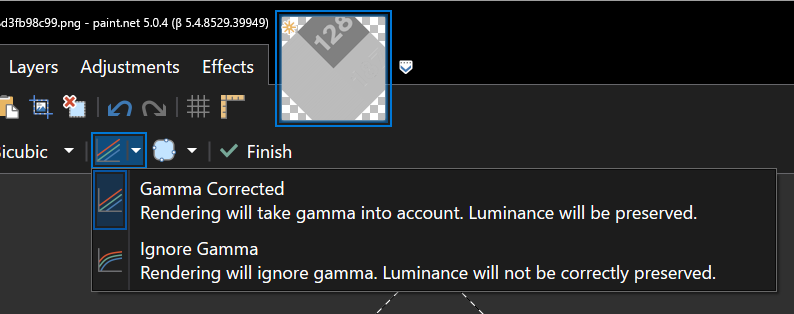
image.png

Speaking of which, there is a good test image for this over at https://forums.getpaint.net/topic/122409-feature-request-gamma-corrected-image-resizing/ . I’ll be using the “128 / 187” image for the next two screenshots.

Next up, all in-app thumbnails and the canvas itself are now using gamma correction. This ensures that luminance (aka brightness) is correctly maintained when you’re zooming out on the image (and thumbnails are basically little zoom-outs of the image). Previously, the reduced size image would get darker in ways that we’ve all just kind of gotten used to over the years (but which is wrong ).

Without gamma correction, it looks like this in v5.0.3:

image.png

With gamma correction in v5.0.4, it looks correct:

image.png

This required a bunch of changes to how the canvas renders itself, so while I was in that code I also bumped up the quality of its rendering. When zooming in to an image, a type of antialiasing is now applied so that the pixelation effect appears more uniform. And when zooming out, multisampling is used to make the image looking smoother. There are a lot less aliasing artifacts.

It’s hard to show these effects in your browser because things will likely get resized and distorted, but I’ll try. On the left is the original, a cloud bubble drawn into a 128×128 pixel space. Antialiasing was disabled and the brush size was set to 1. The next two images are zoomed at 267%, in v5.0.3 and then in v5.0.4. Notice how the pixelation effect is much more uniform in 5.0.4, eliminating the distortions you see in 5.0.3.

image.png image.pngimage.png

If you’d like to read more about gamma correction and rendering in linear gamma space, here are some resources:

Get the Update

There are two releases of Paint.NET:

  • Microsoft Store release (recommended)
  • Classic Desktop release
    • Download the installer from the website. This is the recommended download if you don’t have Paint.NET installed. It can also be used to update the app.
    • If you already have it installed, you should be offered the update automatically within the next week or so, but you can also get it immediately by going to ⚙ Settings -> Updates -> Check Now.
    • Offline Installers and Portable ZIPs are available over on GitHub.

Change Log

Changes since v5.0.4:

    • Fixed a bug that prevented loading images that have multiple frames (GIF, TIFF) (only the first frame is loaded)

Changes since v5.0.3:

  • Improved: Image->Resize has been updated
    • The default resampling mode is now Bicubic, which has been updated to use the Catmull-Rom (“Catrom”) cubic filter. This matches the Bicubic mode of the Move Selected Pixels tool (which uses Direct2D’s “HighQualityCubic” mode).
    • Added a new resampling mode, “Bicubic (Smooth)”, which has no sharpening. It produces subjectively blurrier results, but is important for scenarios where you need to completely avoid the (usually) subtle ringing artifacts that other modes (Bicubic, Lanczos, and Adaptive) can introduce due to their added sharpness.
    • “Adaptive (Best Quality)” has been renamed to “Adaptive (Sharp)” and is no longer the default resampling mode. It is still a very good choice when resizing photos, but whether you use Adaptive, Bicubic, or Lanczos is up to your own personal preference.
    • A new option has been added, “Use gamma correction”, which is enabled by default.
    • The text box for typing in a percentage now accepts two digits past the decimal point, e.g. 35.79%
  • Improved: Move Selected Pixels (free transform) has been updated
    • New: Added a “Multisample Bilinear” sampling mode. This has a sharper look than Anisotropic and avoids the “ringing” artifacts that can be apparent when using Bicubic with high-contrast images (like screenshots). However, it doesn’t usually work as well when reducing a selected area to a much smaller size.
    • New: Added a “Gamma mode” button in the toolbar to toggle gamma correction on and off. The default is on, which improves the quality of rendering by preserving luminance (brightness).
    • Fixed a bug when using Bicubic sampling that would result in added sharpening when resizing the selected area to 1/8th its original size or smaller
  • Improved: The rendering quality of the canvas area has been greatly improved
    • Gamma correction is now used for mipmap generation and compositing, ensuring consistent luminance (brightness) and higher quality antialiasing.
    • Multisampling is now used for antialiasing, which eliminates pixelation distortions when zooming in, and greatly reduces aliasing artifacts when zooming out.
  • Improved: Thumbnails within the app now use gamma correction, which ensures consistent luminance (brightness)
  • New: GPU effects and plugins now support gamma correction, with linear gamma being the default rendering mode for new plugins.
    • This can be changed by overriding OnInitializeRenderInfo() and setting the renderInfo.GpuEffectColorContext property to GpuEffectColorContext.WorkingSpace (the default is WorkingSpaceLinear)
    • GPU effect plugins have better access to color management information via the IGpuEffectImage interface and its ColorContext property. All input images (e.g. Environment.SourceImage) are now provided via this interface.
    • In addition to the built-in effects that already render with gamma correction, the following built-in effects now also render with gamma correction:
      • Adjustments -> Exposure
      • Blurs -> Fragment
      • Blurs -> Motion Blur
      • Blurs -> Radial Blur
      • Blurs -> Zoom Blur
      • Distort -> Bulge
      • Distort -> Crystalize
      • Distort -> Dents
      • Distort -> Frosted Glass
      • Distort -> Pixelate
      • Distort -> Polar Inversion
      • Distort -> Tile Reflection
      • Distort -> Twist
      • Layers -> Rotate/Zoom
      • Object -> Drop Shadow
      • Photo -> Straighten
      • Render -> Julia Fractal
      • Render -> Mandelbrot Fractal
  • Fixed: Ctrl+G has been reinstated as the shortcut key for Image -> Rotate 90° Counter-Clockwise
  • Fixed a rendering glitch in Effects -> Distort -> Dents that would sometimes result in rows or columns of incorrectly colored pixels
  • Fixed: Some systems were having problems with Paint.NET not appearing in the “Open With” list in Windows File Explorer. This should now be fixed.
  • Fixed: When installing an update, the desktop shortcut is no longer recreated. This means you can delete it without it reappearing after every update. This was a bug accidentally reintroduced back in Paint.NET v4.3.
  • Increased the maximum zoom range from 1.5625% (1/64) -> 6,400% to 1% -> 10,000%
  • Improved the reliability of the wrapper classes for Windows COM libraries (Direct2D, etc.)
  • Improved the /ignoreCorruptPDNChunks command-line parameter to allow an additional type of corrupt PDN image to be partially recovered (thanks @null54!)
  • Updated the bundled DDSFileTypePlus plugin to version 1.11.8.0, which adds gamma correction for mipmap generation (thanks @null54!)
  • Updated the bundled AvifFileType plugin to version 1.1.25.0, which now uses a checkbox to enable lossless compression (thanks @null54!)
  • Updated the bundled WebPFileType plugin to version 1.3.17.0, which reduces some confusion when using lossless compression (thanks @null54!)

paint.net 5.0.4 is now available

This update includes another revamp of Image->Resize’s resampling modes, gamma correction for key parts of the app, higher quality canvas rendering, and a host of other miscellaneous fixes and improvements. In addition, GPU-based effect plugins now default to rendering in linear gamma space (existing plugins are not affected, however!) and have better access to color management information.

Gamma correction is important for maintaining luminance (brightness, basically) when an image is being processed or rendered. Sometimes this effect is subtle, but in some cases it can be quite pronounced. 

First up, in Image->Resize the resampling mode has been moved to the bottom into an Options section, along with a new “Use gamma correction” checkbox that defaults to enabled:

image.png

The Move Selected Pixels tool has also been upgraded to support this for all resampling modes (although it’s not applicable to Nearest Neighbor), and there is a new Gamma mode choice in the toolbar if you’d rather not use it for whatever reason:

image.png

Speaking of which, there is a good test image for this over at https://forums.getpaint.net/topic/122409-feature-request-gamma-corrected-image-resizing/ . I’ll be using the “128 / 187” image for the next two screenshots.

Next up, all in-app thumbnails and the canvas itself are now using gamma correction. This ensures that luminance (aka brightness) is correctly maintained when you’re zooming out on the image (and thumbnails are basically little zoom-outs of the image). Previously, the reduced size image would get darker in ways that we’ve all just kind of gotten used to over the years (but which is wrong ).

Without gamma correction, it looks like this in v5.0.3:

image.png

With gamma correction in v5.0.4, it looks correct:

image.png

This required a bunch of changes to how the canvas renders itself, so while I was in that code I also bumped up the quality of its rendering. When zooming in to an image, a type of antialiasing is now applied so that the pixelation effect appears more uniform. And when zooming out, multisampling is used to make the image looking smoother. There are a lot less aliasing artifacts.

It’s hard to show these effects in your browser because things will likely get resized and distorted, but I’ll try. On the left is the original, a cloud bubble drawn into a 128×128 pixel space. Antialiasing was disabled and the brush size was set to 1. The next two images are zoomed at 267%, in v5.0.3 and then in v5.0.4. Notice how the pixelation effect is much more uniform in 5.0.4, eliminating the distortions you see in 5.0.3.

image.png image.pngimage.png

If you’d like to read more about gamma correction and rendering in linear gamma space, here are some resources:

Get the Update

There are two releases of Paint.NET:

  • Microsoft Store release (recommended)
  • Classic Desktop release
    • Download the installer from the website. This is the recommended download if you don’t have Paint.NET installed. It can also be used to update the app.
    • If you already have it installed, you should be offered the update automatically within the next week or so, but you can also get it immediately by going to ⚙ Settings -> Updates -> Check Now.
    • Offline Installers and Portable ZIPs are available over on GitHub.

Change Log

Changes since v5.0.3:

  • Improved: Image->Resize has been updated
    • The default resampling mode is now Bicubic, which has been updated to use the Catmull-Rom (“Catrom”) cubic filter. This matches the Bicubic mode of the Move Selected Pixels tool (which uses Direct2D’s “HighQualityCubic” mode).
    • Added a new resampling mode, “Bicubic (Smooth)”, which has no sharpening. It produces subjectively blurrier results, but is important for scenarios where you need to completely avoid the (usually) subtle ringing artifacts that other modes (Bicubic, Lanczos, and Adaptive) can introduce due to their added sharpness.
    • “Adaptive (Best Quality)” has been renamed to “Adaptive (Sharp)” and is no longer the default resampling mode. It is still a very good choice when resizing photos, but whether you use Adaptive, Bicubic, or Lanczos is up to your own personal preference.
    • A new option has been added, “Use gamma correction”, which is enabled by default.
    • The text box for typing in a percentage now accepts two digits past the decimal point, e.g. 35.79%
  • Improved: Move Selected Pixels (free transform) has been updated
    • New: Added a “Multisample Bilinear” sampling mode. This has a sharper look than Anisotropic and avoids the “ringing” artifacts that can be apparent when using Bicubic with high-contrast images (like screenshots). However, it doesn’t usually work as well when reducing a selected area to a much smaller size.
    • New: Added a “Gamma mode” button in the toolbar to toggle gamma correction on and off. The default is on, which improves the quality of rendering by preserving luminance (brightness).
    • Fixed a bug when using Bicubic sampling that would result in added sharpening when resizing the selected area to 1/8th its original size or smaller
  • Improved: The rendering quality of the canvas area has been greatly improved
    • Gamma correction is now used for mipmap generation and compositing, ensuring consistent luminance (brightness) and higher quality antialiasing.
    • Multisampling is now used for antialiasing, which eliminates pixelation distortions when zooming in, and greatly reduces aliasing artifacts when zooming out.
  • Improved: Thumbnails within the app now use gamma correction, which ensures consistent luminance (brightness)
  • New: GPU effects and plugins now support gamma correction, with linear gamma being the default rendering mode for new plugins.
    • This can be changed by overriding OnInitializeRenderInfo() and setting the renderInfo.GpuEffectColorContext property to GpuEffectColorContext.WorkingSpace (the default is WorkingSpaceLinear)
    • GPU effect plugins have better access to color management information via the IGpuEffectImage interface and its ColorContext property. All input images (e.g. Environment.SourceImage) are now provided via this interface.
    • In addition to the built-in effects that already render with gamma correction, the following built-in effects now also render with gamma correction:
      • Adjustments -> Exposure
      • Blurs -> Fragment
      • Blurs -> Motion Blur
      • Blurs -> Radial Blur
      • Blurs -> Zoom Blur
      • Distort -> Bulge
      • Distort -> Crystalize
      • Distort -> Dents
      • Distort -> Frosted Glass
      • Distort -> Pixelate
      • Distort -> Polar Inversion
      • Distort -> Tile Reflection
      • Distort -> Twist
      • Layers -> Rotate/Zoom
      • Object -> Drop Shadow
      • Photo -> Straighten
      • Render -> Julia Fractal
      • Render -> Mandelbrot Fractal
  • Fixed: Ctrl+G has been reinstated as the shortcut key for Image -> Rotate 90° Counter-Clockwise
  • Fixed a rendering glitch in Effects -> Distort -> Dents that would sometimes result in rows or columns of incorrectly colored pixels
  • Fixed: Some systems were having problems with Paint.NET not appearing in the “Open With” list in Windows File Explorer. This should now be fixed.
  • Fixed: When installing an update, the desktop shortcut is no longer recreated. This means you can delete it without it reappearing after every update. This was a bug accidentally reintroduced back in Paint.NET v4.3.
  • Increased the maximum zoom range from 1.5625% (1/64) -> 6,400% to 1% -> 10,000%
  • Improved the reliability of the wrapper classes for Windows COM libraries (Direct2D, etc.)
  • Improved the /ignoreCorruptPDNChunks command-line parameter to allow an additional type of corrupt PDN image to be partially recovered (thanks @null54!)
  • Updated the bundled DDSFileTypePlus plugin to version 1.11.8.0, which adds gamma correction for mipmap generation (thanks @null54!)
  • Updated the bundled AvifFileType plugin to version 1.1.25.0, which now uses a checkbox to enable lossless compression (thanks @null54!)
  • Updated the bundled WebPFileType plugin to version 1.3.17.0, which reduces some confusion when using lossless compression (thanks @null54!)

paint.net 5.0.4 beta (build 8529) is now available

This build includes an update of Image->Resize’s resampling modes, gamma correction for key parts of the app, higher quality canvas rendering, and a host of other miscellaneous fixes and improvements. In addition, GPU-based effect plugins now default to rendering in linear gamma space (existing plugins are not affected, however!) and have better access to color management information.

Gamma correction is important for maintaining luminance (brightness, basically) when an image is being processed or rendered. Sometimes this effect is subtle, but in some cases it can be quite pronounced.

First up, in Image->Resize the resampling mode has been moved to the bottom into an Options section, along with a new “Use gamma correction” checkbox that defaults to enabled:

image.png

The Move Selected Pixels tool has also been upgraded to support this for all resampling modes (although it’s not applicable to Nearest Neighbor), and there is a new Gamma mode choice in the toolbar if you’d rather not use it for whatever reason:

image.png

Speaking of which, there is a good test image for this over at https://forums.getpaint.net/topic/122409-feature-request-gamma-corrected-image-resizing/ . I’ll be using the “128 / 187” image for the next two screenshots.

Next up, all in-app thumbnails and the canvas itself are now using gamma correction. This ensures that luminance (aka brightness) is correctly maintained when you’re zooming out on the image (and thumbnails are basically little zoom-outs of the image).

Without gamma correction, it looks like this in v5.0.3:

image.png

With gamma correction in v5.0.4, it looks correct:

image.png

Since this required a bunch of updates to how the canvas renders itself, I also bumped up the quality of its rendering. When zooming in to an image, a type of antialiasing is now applied so that the pixelation effect appears more uniform. And when zooming out, multisampling is used to make the image looking smoother. There are a lot less aliasing artifacts.

It’s hard to show these effects in your browser because things will likely get resized and distorted, but I’ll try. On the left is the original, a cloud bubble drawn into a 128×128 pixel space. Antialiasing was disabled and the brush size was set to 1. The next two images are zoomed at 267%, in v5.0.3 and then in v5.0.4. Notice how the pixelation effect is much more uniform in 5.0.4, eliminating the distortions you see in 5.0.3.

image.png image.pngimage.png

If you’d like to read more about gamma correction and rendering in linear gamma space, here are some resources:

―――――

This build is available via the built-in updater as long as you have opted-in to pre-release updates. From within Settings -> Updates, enable “Also check for pre-release (beta) versions of paint.net” and then click on the Check Now button. You can also use the links below to download an offline installer or portable ZIP.
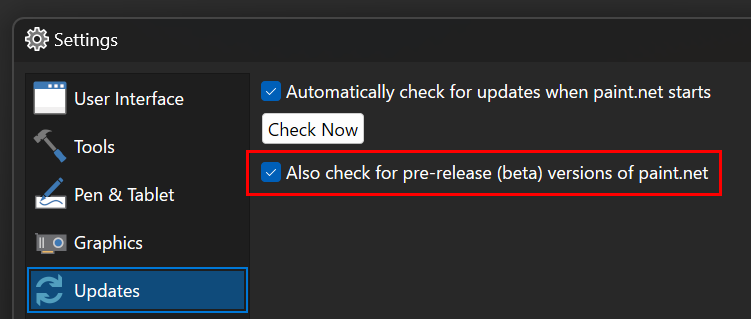
image.png

You can also download the installer here (for any supported CPU and OS). Offline installers, portable ZIPs, and deployable MSIs are available over on GitHub.

Changes since v5.0.3:

  • Improved: Image->Resize has been updated
    • The default resampling mode is now Bicubic, which has been updated to use the Catmull-Rom (“Catrom”) cubic filter. This matches the Bicubic mode of the Move Selected Pixels tool (which uses Direct2D’s “HighQualityCubic” mode).
    • Added a new resampling mode, “Bicubic (Smooth)”, which has no sharpening. It may produces blurrier results, but is important for some scenarios if you need to completely avoid ringing artifacts that other modes (Bicubic, Lanczos, and Adaptive) can introduce due to their added sharpness.
    • “Adaptive (Best Quality)” has been renamed to “Adaptive (Sharp)” and is no longer the default resampling mode. It is still a very good choice when resizing photos, but whether you use Adaptive, Bicubic, or Lanczos is up to your own personal preference.
    • A new option has been added, “Use gamma correction”, which is enabled by default.
    • The text box for typing in a percentage now accepts two digits past the decimal point, e.g. 35.79%
  • Improved: Move Selected Pixels (free transform) has been updated
    • New: Added a “Multisample Bilinear” sampling mode. This has a sharper look than Anisotropic and avoids the “ringing” artifacts that can be apparent when using Bicubic with high-contrast images (like screenshots). However, it doesn’t usually work as well when reducing a selected area to a much smaller size.
    • New: Added a “Gamma mode” button in the toolbar to toggle gamma correction on and off. The default is on, which improves the quality of rendering by preserving luminance (brightness).
    • Fixed a bug when using Bicubic sampling that would result in added sharpening when resizing the selected area to 1/8th its original size or smaller
  • Improved: The rendering quality of the canvas area has been greatly improved
    • Gamma correction is now used for mipmap generation and compositing, ensuring consistent luminance (brightness) and higher quality antialiasing.
    • Multisampling is now used for antialiasing, which eliminates pixelation distortions when zooming in, and greatly reduces aliasing artifacts when zooming out.
  • Improved: Thumbnails within the app now use gamma correction, which ensures consistent luminance (brightness)
  • New: GPU effects and plugins now support gamma correction, with linear gamma being the default rendering mode for new plugins.
    • This can be changed by overriding OnInitializeRenderInfo() and setting the renderInfo.GpuEffectColorContext property to GpuEffectColorContext.WorkingSpace (the default is WorkingSpaceLinear)
    • GPU effect plugins have better access to color management information via the IGpuEffectImage interface and its ColorContext property. All input images (e.g. Environment.SourceImage) are now provided via this interface.
    • In addition to the built-in effects that already render with gamma correction, the following built-in effects now also render with linear gamma and/or gamma correction:
      • Adjustments -> Exposure
      • Blurs -> Fragment
      • Blurs -> Motion Blur
      • Blurs -> Radial Blur
      • Blurs -> Zoom Blur
      • Distort -> Bulge
      • Distort -> Crystalize
      • Distort -> Dents
      • Distort -> Frosted Glass
      • Distort -> Pixelate
      • Distort -> Polar Inversion
      • Distort -> Tile Reflection
      • Distort -> Twist
      • Layers -> Rotate/Zoom
      • Object -> Drop Shadow
      • Photo -> Straighten
      • Render -> Julia Fractal
      • Render -> Mandelbrot Fractal
  • Fixed: Ctrl+G has been reinstated as the shortcut key for Image -> Rotate 90° Counter-Clockwise
  • Fixed a rendering glitch in Effects -> Distort -> Dents that would sometimes result in rows or columns of incorrectly colored pixels
  • Fixed: Some systems were having problems with Paint.NET not appearing in the “Open With” list in Windows File Explorer. This should now be fixed.
  • Fixed: When installing an update, the desktop shortcut is no longer recreated. This means you can delete it without it reappearing after every update. This was a bug accidentally reintroduced back in Paint.NET v4.3.
  • Improved: Increased the maximum zoom range from 1.5625% (1/64) -> 6,400% to 1% -> 10,000%
  • Improved the reliability of the wrapper classes for Windows COM libraries (Direct2D, etc.)
  • Improved the /ignoreCorruptPDNChunks to allow an additional type of corrupt PDN image to be partially recovered (thanks @null54!)
  • Updated the bundled DDSFileTypePlus plugin to v1.11.8.0, which adds gamma correction for mipmap generation (thanks @null54!)
  • Updated the bundled WebPFileType to version v1.3.17.0, which reduces some confusion when using lossless compression (thanks @null54!)

paint.net 5.0.3 is now available

This update adds the ability to draw shapes from the center, the ability to resize shapes and selections uniformly (from the center), as well as the usual handful of bug fixes.

In this update I’ve also rewritten the Direct2D initialization code to modernize it (switching away from ID2D1HwndRenderTarget, in other words). For now you should see no difference, in terms of rendering or performance, compared to previous versions. Future updates should see reduced memory usage and improved canvas interaction capabilities as I investigate and integrate the use of newer Windows libraries like DirectComposition and DirectManipulation.

For all the details on what’s new in 5.0 (there’s a lot!), check out its release post.

Changes since 5.0.2:

  • New: You can now draw from the center when using the Shapes or Line/Curve tools by holding down Ctrl. You can also resize uniformly by holding Ctrl.
  • New: You can now resize uniformly (“centered”) by holding down Ctrl when using the Move Selection or Move Selected Pixels tools
  • Fixed: Edit -> Copy and Copy Merged are no longer greyed out (disabled) when a selection is not active; they will copy the entire layer or image. You could always use the keyboard shortcuts (Ctrl+C or Ctrl+Shift+C) to invoke these commands, but the menu items were not clickable.
  • Fixed: Right-clicking on the color wheel in the Colors window will now set the secondary color
  • Fixed some issues with the Text tool recentering the view when it shouldn’t when keys like Ctrl are pressed
  • Fixed some JPEG images failing to load because of malformed IPTC metadata
  • Fixed a rare crash in the Magic Wand and Paint Bucket tools
  • Fixed an uncommon rendering glitch with the Text tool when antialiasing is disabled
  • Fixed an issue with some older plugins that were using the legacy Gaussian Blur effect with radius=0
  • Added an /ignoreCorruptPDNChunks command-line parameter to assist with certain data recovery scenarios for .PDN files
  • Updated the Direct2D initialization code in order to modernize it and enable future work that will optimize performance, memory use, and interactivity (e.g. with DirectComposition and DirectManipulation)
  • Updated the bundled DDSFileTypePlus plugin to version 1.11.4.0, which adds error diffusion dithering support for the BC1-3 formats (thanks @null54!)

Get the Update

There are two releases of Paint.NET:

  • Microsoft Store release (recommended)
  • Classic Desktop release
    • Download the installer from the website. This is the recommended download if you don’t have Paint.NET installed. It can also be used to update the app.
    • If you already have it installed, you should be offered the update automatically within the next week or so, but you can also get it immediately by going to ⚙ Settings -> Updates -> Check Now.
    • Offline Installers and Portable ZIPs are available over on GitHub.

paint.net 5.0.3 beta (build 8482) is now available

This update contains a handful of targeted fixes, and the ability to draw (and resize) shapes from the center.

In this update I’ve also rewritten the Direct2D initialization code to modernize it (switching away from ID2D1HwndRenderTarget, in other words). For now you should see no difference, in terms of rendering or performance, compared to previous versions. Future updates should see reduced memory usage and improved canvas interaction capabilities as I investigate and integrate the use of newer Windows libraries like DirectComposition and DirectManipulation.

If you have multiple monitors and/or multiple GPUs, especially if you have multiple monitors plugged into different GPUs, then I’d very much appreciate you testing this build! Launch the app, move it to other monitors, maximize it, restore/minimize, do all sorts of things. Everything should just work like it always has. Please let me know immediately if the app crashes, stops rendering, or hangs.

―――――

This build is available via the built-in updater as long as you have opted-in to pre-release updates. From within Settings -> Updates, enable “Also check for pre-release (beta) versions of paint.net” and then click on the Check Now button. You can also use the links below to download an offline installer or portable ZIP.

image.png

Download the installer here (for any supported CPU and OS). Offline installers, portable ZIPs, and deployable MSIs are available over on GitHub.

Changes since 5.0.2:

  • New: You can now draw from the center when using the Shapes or Line/Curve tools by holding down Ctrl. You can also resize uniformly by holding Ctrl.
  • New: You can now resize uniformly (“centered”) by holding down Ctrl when using the Move Selection or Move Selected Pixels tools
  • Fixed: Edit -> Copy and Copy Merged are no longer greyed out (disabled) when a selection is not active; they will copy the entire layer or image. You could always use the keyboard shortcuts (Ctrl+C or Ctrl+Shift+C) to invoke these commands, but the menu items were not clickable.
  • Fixed: Right-clicking on the color wheel in the Colors window will now set the secondary color
  • Fixed some issues with the Text tool recentering the view when it shouldn’t when keys like Ctrl are pressed
  • Fixed some JPEG images failing to load because of malformed IPTC metadata
  • Fixed a rare crash in the Magic Wand and Paint Bucket tools
  • Fixed an uncommon rendering glitch with the Text tool when antialiasing is disabled
  • Fixed an issue with some older plugins that were using the legacy Gaussian Blur effect with radius=0
  • Added an /ignoreCorruptPDNChunks command-line parameter to assist with certain data recovery scenarios for .PDN files
  • Updated the Direct2D initialization code in order to modernize it and enable future work that will optimize performance, memory use, and interactivity (e.g. with DirectComposition and DirectManipulation)
  • Updated the bundled DDSFileTypePlus plugin to version 1.11.4.0, which adds error diffusion dithering support for the BC1-3 formats (thanks @null54!)

paint.net 5.0.2 is now available

This is a small update with some performance improvements, bug fixes, and updates to the bundled plugins.

For all the details on what’s new in 5.0 (there’s a lot!), check out its release post.

Changes since 5.0.1:

  • New Adjustment: Invert Alpha
  • Greatly improved performance for some distortion effects (Bulge, Crystalize, Dents, Frosted Glass)
  • Improved performance with large images, especially when making small/quick edits
  • Fixed keyboard tabbing between the Width and Height text boxes in the toolbar when using Fixed Ratio or Fixed Size with the Rectangle Select tool
  • Fixed Bokeh blur effect’s handling of the alpha channel for images with transparency
  • Fixed the keyboard up/down increments for the Offset property in the Drop Shadow effect
  • Fixed compatibility with the Lightning effect plugin
  • Fixed compatibility with the ApplyTexture effect plugin
  • Removed keyboard shortcuts for Image -> Rotate 90° Counter-clockwise and Rotate 180°
  • Updated the bundled AvifFileType plugin to version 1.1.24.0 (thanks @null54!)
  • Updated the bundled DDSFileTypePlus plugin to version 1.11.1.0 (thanks @null54!)

Get the Update

There are two releases of Paint.NET:

  • Microsoft Store release (recommended)
  • Classic Desktop release
    • Download the installer from the website. This is the recommended download if you don’t have Paint.NET installed. It can also be used to update the app.
    • If you already have it installed, you should be offered the update automatically within the next week or so, but you can also get it immediately by going to ⚙ Settings -> Updates -> Check Now.
    • Offline Installers and Portable ZIPs are available over on GitHub.

paint.net 5.0.1 is now available

This is a small update with a few important bug fixes, updates to the bundled plugins, and a new toolbar button to enable/disable pressure sensitivity.

For all the details on what’s new in 5.0 (there’s a lot!), check out its release post.

Changes since 5.0:

  • New: Added a button in the toolbar, next to Brush Size, for enabling/disabling pressure sensitivity. The button will only appear if a compatible pen or drawing tablet is detected, and Windows Ink has not been disabled in Settings.
  • Fixed some issues with the main window that would only happen on multimonitor Windows 10 systems
  • Fixed a few small issues with the Zoom tool
  • Fixed an issue when saving a JPEG or TIFF with certain types of 0-length IPTC metadata
  • Fixed: On older systems with multiple GPUs (e.g. Intel HD iGPU and an AMD/NVIDIA dGPU), where the first enumerated GPU does not support Direct3D 11, PDN will now use the next enumerated GPU that meets the Direct3D 11 requirement, rather than falling back to CPU rendering.
  • Fixed a rendering bug when using the Pencil tool on small images exactly 2 pixels wide
  • Fixed some crashes on systems with buggy GPU drivers. Paint.NET will try to revert to software rendering in this case.
  • Fixed a crash on some systems with multiple pen/tablet devices, where some of the devices were claiming the same cursor ID
  • Changed: All binaries are now digitally signed, not just EXEs and the shell extension DLLs (thanks @null54 for the help!)
  • Updated the bundled AvifFileType plugin to version 1.1.23, which fixes an issue with progressive decoding (thanks @null54!) 
  • Updated the bundled DDSFileTypePlus plugin to version 1.11.0.0, which now detects files saved with the wrong extension and tries to load the file anyway (thanks @null54!)
  • Updated the bundled WebPFileType plugin to version 1.3.16.0, which fixes the detection of misnamed files (thanks @null54!)

Get the Update

There are two releases of Paint.NET:

  • Microsoft Store release (recommended)
  • Classic Desktop release
    • Download the installer from the website. This is the recommended download if you don’t have Paint.NET installed. It can also be used to update the app.
    • If you already have it installed, you should be offered the update automatically within the next week or so, but you can also get it immediately by going to ⚙ Settings -> Updates -> Check Now.
    • Offline Installers and Portable ZIPs are available over on GitHub.