Playing with Paint.NET v3.20’s new Property System

I’ve finally settled on the framework code for this new property system and automatic UI generator, at least with respect to Effect configuration dialogs. The beauty of this new system is that it literally only takes me about 5 minutes to convert an effect from the old system to this new system. And, from there, I can experiment with adding, removing, and tweaking properties at a very quick pace.

For example, tonight I went and upgraded many of the effects that come with Paint.NET. For most of them there won’t be much of a difference, such as Add Noise: it’s just two Int32-based sliders. But, for others …

Tile Reflection (v3.10 versus v3.20)


Zoom Blur (v3.10 versus v3.20)


The difference can be quite pronounced. I don’t have to write much code for any of this! Most of the work in these new dialogs is in making sure that the text resources are still loaded properly. I think this will be of great benefit for plugin authors, as it will allow them to use a much more versatile set and quantity of rendering properties, without having to resort to clumsy UI and data binding code.

What’s coming for Paint.NET v3.20: Plugin Development

In a previous blog posting I rambled on about how plugins need to be easier, both for users and developers. I haven’t had a lot of time lately to work on Paint.NET, but I have managed to get started on a new system for developing effect plugins that provide configuration UI for the user. These types of plugins are the most popular: you click on them in the Effects menu and it pops up a dialog with sliders and buttons and whatnot which lets you configure properties that determine how the effect is rendered.

The problem with developing these configuration dialogs is that they are extremely tiresome to write. You can write rendering code for a simple plugin very quickly using CodeLab, but you are limited to a “1, 2, or 3 amount sliders” configuration dialog. If you need 4 sliders, then you have to write a brand new dialog from scratch complete with layout and data binding. It’s easy to get the implementation wrong, or to at least skirt the line of what constitutes a “correct” implementation. My experience has been that if it’s possible to do things “the wrong way,” then your framework needs to be changed: it should only ever be possible to do things the right way, or at least make it extremely obvious when you’re breaking the rules. Right now that distinction isn’t really clear.

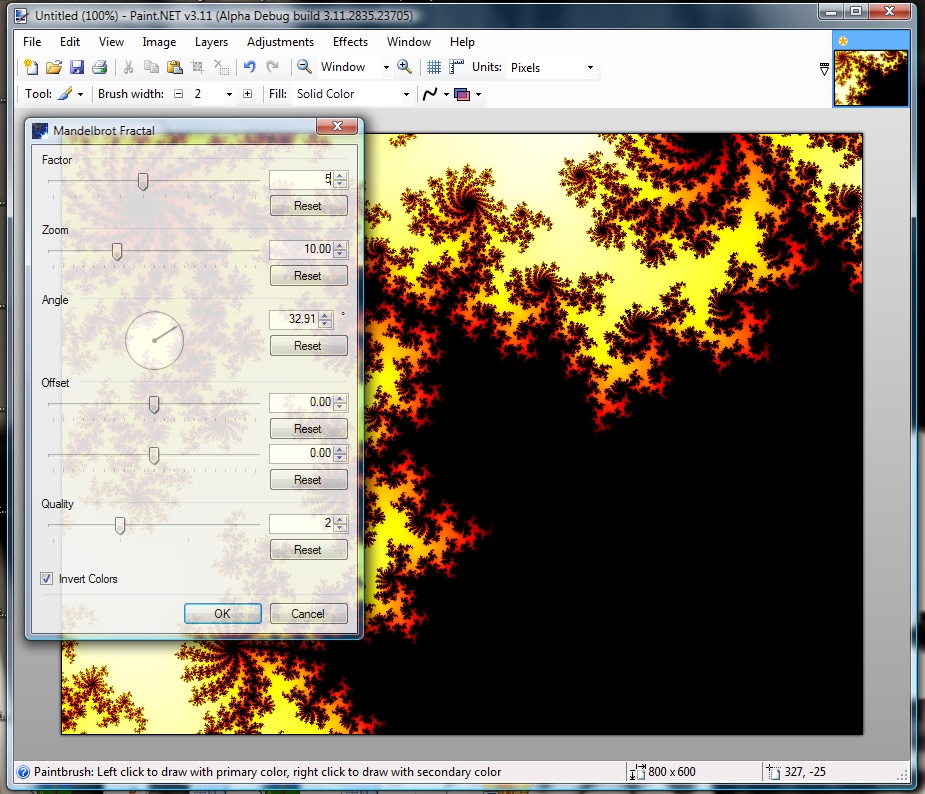
I have been working on a new system that will allow plugin developers to easily get intricate configuration dialogs from just a description of the properties that govern rendering. For example, adding this code in an Effect:

protected override PropertyCollection CreatePropertyCollection()
{
List<Property> props = new List<Property>();

props.Add(new Int32Property(PropertyNames.Factor, 1, 1, 10));
props.Add(new DoubleProperty(PropertyNames.Zoom, 10, 0, 100));
props.Add(new AngleProperty(PropertyNames.Angle));

props.Add(new DoubleVectorProperty(
PropertyNames.Offset,
Pair.MakePair(0.0, 0.0),
Pair.MakePair(-1.0, -1.0),
Pair.MakePair(1.0, 1.0)));

props.Add(new Int32Property(PropertyNames.Quality, 2, 1, 4));
props.Add(new BooleanProperty(PropertyNames.InvertColors));

return new PropertyCollection(props, new PropertyCollectionRule[0]);
}

… generates this type of dialog:

(click for full-size)

All of the layout and data binding is handled automatically, making the plugin author’s life much, much easier. The dialog is resizable, and if there are too many properties to fit on-screen it will automatically provide a scrollbar. The UI itself is still rough draft: the “offset” is still just two sliders right now, for instance, and needs something akin to what we have in the Rotate/Zoom dialog. This system and the UI generation should only improve with time. Eventually I want to have the Rotate/Zoom, Curves, and even Levels configuration dialogs written using this. So far I have an enhanced version of Frosted Glass using this, and have re-done the UI for Clouds up to feature parity with v3.10.

But the great thing about being able to easily get this UI is that it is also very easy to change it. What if you want to change the ordering? Add a property? Remove two properties? It’s easy. Just change the code in your CreatePropertyCollection() function.

Once this system is mostly finished for Effect development, I will also be extending it to the UI generation for file type plugins. This will allow me to provide rich configuration for things like HDPhoto, but without having to write a lot of the complicated logic that governs its data binding and property value dependencies (“property Z may only be configured if property M is enabled” … barf).

The other thing some of you may have picked up on is that the code above could easily be auto-generated from, for instance, an XML description of the same properties. This system is being designed to make code generation scenarios simple to implement, such as for CodeLab.

Lastly, once the system is well understood, I will rewrite the “Colors” floater window using the same UI generation and property system. That thing is about 5,000 lines of code and is very fragile. It has grown organically since 2004 and is in very sad shape. It works, but only because it has been thoroughly debugged. I much prefer code that works because it was meant to work (i.o.w. it works by design, not by accident).

Paint.NET v3.10 – Final release is now available!

Well, it’s finally here! You can get it from the website, http://www.getpaint.net/ , or via Paint.NET’s built-in updater (Help -> Check for Updates). This release adds two new effects originally written by David Issel (“BoltBait”), support for the DDS file type originally written by Dean Ashton, as well as numerous small bug fixes and some visual fit and finish.

Change log:

  • New: Soften Portrait effect, by David Issel, http://www.BoltBait.com .
  • New: Ink Sketch effect, by David Issel, http://www.BoltBait.com .
  • New: DirectDraw Surface (DDS) file format support, by Dean Ashton, http://www.dmashton.co.uk/ . Improved from the original source code by optimizing the DXT compression library (“Squish”) to take advantage of multiple cores / processors.
  • New: “Paint.NET Search”, available from the Help menu (shortcut key is Ctrl+E), allows you to search for Paint.NET help, forum posts, tutorials, plugins, and other related material: http://searchpaint.net (Note: This feature is only available in English.)
  • Improved: Visual fit-and-finish for the Layers window.
  • Improved: Visual fit-and-finish for the close / ‘X’ button on image thumbnails.
  • Improved: Small (about 5-10%) performance improvements for some effects such as Oil Painting, Frosted Glass, and Gaussian Blur.
  • Improved: Increased max brush size to 500, as per forum members request.
  • Improved: Expanded list of available font sizes up through 288.
  • Changed: The keyboard shortcut key for the Color Picker is now ‘k’. This makes it so that the toolbar option, “After click: Switch to previous tool”, is not useless for those using the keyboard shortcuts.
  • Fixed: In some cases, undoing an action that removed a layer would result in the un-removed layer not showing up until you resized the Layers window (“ghost layers”).
  • Fixed: Pressing F1 from the main window no longer launches the online help in two browser tabs.
  • Fixed: Adding a new layer now adds it above the currently active layer, instead of at the very top of the layer list.
  • Fixed: Merge Down now activates the merged layer instead of the one above it.
  • Fixed: In Vista, clicking on a URL link from the installer will no longer launch the web browser with inherited, elevated privileges.
  • Fixed: Pressing Ctrl+[ no longer cancels out of drawing a line/curve, but instead decreases the brush size by 5 as expected.
  • Fixed: Ctrl+clicking on the brush size +/- buttons now changes the brush size in increments of 5.
  • Fixed: Save Configuration dialog would “creep downward” from its last position every time it was opened again.
  • Fixed: TGA codec now saves the * of alpha bits to the image descriptor byte. This was causing some other applications to load TGA files saved with Paint.NET as solid black images.
  • Fixed: Clicking the ‘X’ to close the Layer Properties dialog was not reverting changes made to the layer while the dialog was open.
  • Fixed: Installation will not proceed unless Paint.NET is closed, and will also not allow Paint.NET to be opened until installation is completed. This helps to ensure a fully coherent and complete installation or update.
  • Fixed: If a file failed to open, and there were no open images, and the user pressed either the Zoom In or Zoom Out toolbar buttons, then Paint.NET would crash.
  • Fixed: In Vista, it was possible to crash the Save As dialog by typing a filename that was too long.
  • Fixed: In Vista, it was possible to crash the updater if you let the UAC prompt time-out.
  • Fixed: It was possible to crash Paint.NET on some systems by clicking on a tool in the Tools window while the “Save As” dialog was open.

Enjoy!

Paint.NET v3.10 Beta 2 is now available!

There were enough code changes and additional fixes to warrant a second beta, so here it is! Anyway, get it in the usual places: (1) from the website, http://www.getpaint.net, or (2) via the built-in updater. Make sure that “Also check for pre-release (Beta) versions” is enabled.

Changes:

  • Changed: Increased max brush size to 500, as per forum members request
  • Fixed: Some layout issues with the Save Configuration dialog and the DDS configuration control
  • Fixed: In some cases, undoing an action that removed a layer would result in the un-removed layer not showing up until you resized the Layers window (“ghost layers”)
  • Fixed: Pressing F1 from the main window would launch the online help in two browser tabs
  • Fixed: Adding a new layer now adds it above the currently active layer instead of at the very top of the layer list
  • Fixed: Merge Down now activates the merged layer instead of the one above it
  • Fixed: Put the ‘x’ close button back in the Layer Properties window (managed to fix the bug w/o necessitating removal of the ‘x’)
  • Fixed: In Vista, clicking on a URL link from the installer will no longer launch the web browser with inherited, elevated privileges

Enjoy!

Paint.NET Help / Documentation – Now Searchable!

I finally found/made some time and added a search box to the Paint.NET Help. It was pretty simple to do in all honesty, it’s just something that I’d been procrastinating for a very long time.

Plus, it took a bit to find the right program on Google’s page because the default “search stuff” in AdSense only lets you specify a domain and not a directory (I could not specify http://www.getpaint.net/doc/en and would have had to set up an alias such as http://help.getpaint.net). I had to find the “custom search engine” stuff that would let me also add in a block of Javascript to the website. I got there from google.com, clicking on “Business Solutions”, then “Web Search and Site Search”, then finally “Custom Search.” Then I had to go through some workflow to configure everything and link it to my AdSense account. Why wasn’t it just built in to the AdSense control panel to begin with!?

So, note to Google: please consolidate the search engine stuff in to one place in a way that makes sense to publishers!

Please excuse the awesome layout of the help file, I am definitely not a web developer …

Paint.NET v3.10 BETA is now available!

You can get it at the website, http://www.getpaint.net/ , or from within Paint.NET by going to Help -> Check for Updates. Make sure that the checkbox, “Also check for pre-release (beta) versions” is enabled (Help -> Check for Updates, then click the Options button).

This release adds two new effects originally written by David Issel (“BoltBait”), support for the DDS filetype originally written by Dean Ashton, as well as many small bug fixes and some visual fit and finish.

  • Note: For the beta, the new features are only presented in English. The final release will have complete translations for the other supported languages.
  • New: Soften Portrait effect, by David Issel
  • New: Ink Sketch effect, by David Issel
  • New: DirectDraw Surface (DDS) file format support, by Dean Ashton. Improved from the original source code by optimizing the DXT compression library (“Squish”) to take advantage of multiple cores or processors.
  • Improved: Visual fit-and-finish for the Layers window.
  • Improved: Visual fit-and-finish for the close / ‘X’ button on image thumbnails.
  • Changed: The keyboard shortcut key for the Color Picker is now ‘k’. This makes it so that the toolbar option, “After click: Switch to previous tool”, is not useless for those using the keyboard shortcuts.
  • Fixed: Pressing Ctrl+[ no longer cancels out of drawing a line/curve, but instead decreases the brush size by 5 as expected.
  • Fixed: Ctrl+clicking on the brush size +/- buttons now changes the brush size in increments of 5
  • Fixed: Save Configuration dialog would “creep downward” from its last position every time it was opened again
  • Fixed: TGA codec now saves the # of alpha bits to the image descriptor byte. This was causing some other applications to load TGA files saved with Paint.NET as solid black images.
  • Fixed: Clicking the ‘X’ to close the Layer Properties dialog was not reverting changes made to the layer while the dialog was open.
  • Fixed: Installation will not proceed unless Paint.NET is closed, and will also not allow Paint.NET to be opened until installation is completed. This helps to ensure a fully coherent and complete installation or update.
  • Fixed: In Vista, it was possible to crash the Save As dialog by typing a filename that was too long.
  • Fixed: In Vista, it was possible to crash the updater if you let the UAC prompt time-out.
  • Fixed: It was possible to crash Paint.NET on some systems by clicking on a tool in the Tools window while the “Save As” dialog was open.

Enjoy!

Paint.NET v3.10 Visual Tweaks

I’ve always been a stickler for good looking UI. To that end, I actually have very positive things to say about a lot of the work Apple has done in this space – a few people at work have even jokingly called me a traitor because of my iPhone J

With the original release of Paint.NET v1.0, one mantra I applied to any UI was, “If it isn’t good enough to look like it could be in Windows or Office, then it isn’t finished.”

Oh man, you should have seen our horrible and ugly File->New dialog before I laid down the law on that! J Chris Trevino was a bit fed up with me the day I forced him to do fit-and-finish on that dialog. In the end he agreed it was very much worth it though. (This was over 3 years ago.)

The point is, I made darn sure that the dialogs in v1.0 had good looking and consistent spacing, alignment, ordering, etc. Over the years I’ve continually made changes to Paint.NET to improve its aesthetics in ways that either didn’t hamper, or that even improved, functionality. For 3.0 I spent a lot of time just playing with the color scheme in the toolbar in order to find something that looked great in Windows Vista. I settled on solid white – go figure! A UI that is pleasing to the eye is much more satisfying to use than another UI that is otherwise functionally identical but that is an eyesore. Every once in awhile I’ll see some other application where it’s obvious nobody spent anytime worrying about this stuff, and it’s painful. I’d write more but it’s Friday and I really need to go drink a beer.

Anyway, I could go on and on about this, and hey maybe I will another time (who wants to hear my thoughts on UI and UX* design? Anyone?). The real meat of this post is that I just wanted to show two quick changes to the UI in Paint.NET v3.10 that don’t change its functionality at all, but that do enhance the user experience by way of just being better looking. In UX, I consider these changes to be two “inches” worth of progress. They aren’t changes that would necessitate a release by themselves, but it was fun to throw them in for this upcoming v3.10 release.

The Layers Window – Finally, Some Fit ‘n Finish

The Old:


The New:


The differences are subtle, but it fixes something that’s nagged me for awhile (namely that the Layers window looked like it was from 1995). First, you’ll notice there is no static-sized border around each layer’s preview area. The black 1-pixel border is now fit to the size of the layer, and the standard drop shadow is also added. This is something I have really disliked for awhile because the old borders “clumped up” on the vertical edges so we ended up with a 2 pixel vertical border, but a 1 pixel border on the horizontal edges.

Second, the blue selection highlight extends the full width of the layer row. The checkbox area in particular now looks more correct.

The Image List – Okay, I made the ‘X’ look better

The Old:

The New:

So I’ve had a few (two or three) complaints about the rendering or aesthetics of the close/’X’ in the image list. I didn’t really notice or care much myself, but I was in a good mood about a week ago and figured, “Why not?” So I adapted the ‘X’ image that’s used for Edit->Cut and that I also saw used in some of the stock Vista Sidebar Gadgets for their “close” buttons. I think it looks a little more stylish, although it might not be noticed by most people. That’s ok. For future releases I’ve also got my eye on the image list dropdown icon (the white-with-black-outline down arrow in the “new” screenshot right above), and the “this image has unsaved changes” orange asterisk.

Like I said, these are minor changes that do nothing to affect Paint.NET’s functionality or ease of use. Hopefully they will add one or two points worth of “warm fuzzies”. And hey, those warm fuzzies add up!

Stay tuned. I’m hoping for a beta release of 3.10 this weekend!

* “UX” stands for User eXperience. It’s a term that includes the user interface and the experience of using it as a complete unit. For example, you might refer to the workflow of pasting an image as “a UX”. You could say that you “improved the UX” while in fact you may have removed some UI.

Paint.NET v3.10 Preview

I’ve been working slowly* on what I’m currently calling version 3.20, but in the meantime I decided to put out a small feature-based release. It will be called Paint.NET v3.10, and will include a few new effects, support for a new file type, and of course a few bug fixes. This is the first time that a Paint.NET update will be incorporating code from the community, and I’ve got high hopes for this release. Here’s what’s planned so far:

Megan Fox and Mandy Moore guest star in this blog post. Here are the original images for the modified ones that are shown below:


Soften Portrait – This is based on the “Portrait” effect originally written by BoltBait (aka David Issel). Its implementation is inspired by the Orton Effect that has been popular in photography for quite some time.


Ink Sketch – Again, another effect by BoltBait. I haven’t finalized the icon for this one yet. I’d really like a good quality “ink pen” graphic but haven’t really been able to find one yet!


DDS file type support – This is basically a straight bundling of the DDS File Type Plugin by Dean Ashton. DDS is short for “Direct Draw Surface” and is a file format used by many games and also by the XNA SDK for the XBOX 360. It will install as a few separate DLL’s in the FileTypes directory. This way Dean still has the ability to issue his own updates independent of Paint.NET’s updating schedule.

I have also made some performance tweaks to some of the other effects, with about a 5-15% increase for Oil Painting, Frosted Glass, and Gaussian Blur.

Paint.NET v3.10 should be in beta soon, with the final release by mid-August.

* Hey even I have to take things easy once in awhile J