A Paint.NET Success Story: San Gorgonio Middle School

I received this e-mail earlier in the week. I liked it so I asked if I could publish it to my blog, and Matthew gave me the okay:

Mr. Brewster,

I first contacted you in January asking if I could install Paint.NET* on the computers in my classroom. I teach at 7th and 8th graders at San Gorgonio Middle School in Beaumont, CA. You gave me the go-ahead and I immediately started using the program in all three of my computers classes. The results have been awesome. My students absolutely love using this program, and I am very happy because they got experience with a photo editing software other than Microsoft Paint.

Keeping in mind that these students range from 11 to 13 years old, the skills they have been able to display are phenomenal. You made it possible for about 100 students to get invaluable experience with this software, not to mention fostering their creativity and critical thinking skills. I can’t thank you and your team enough for giving myself and my classes this opportunity.

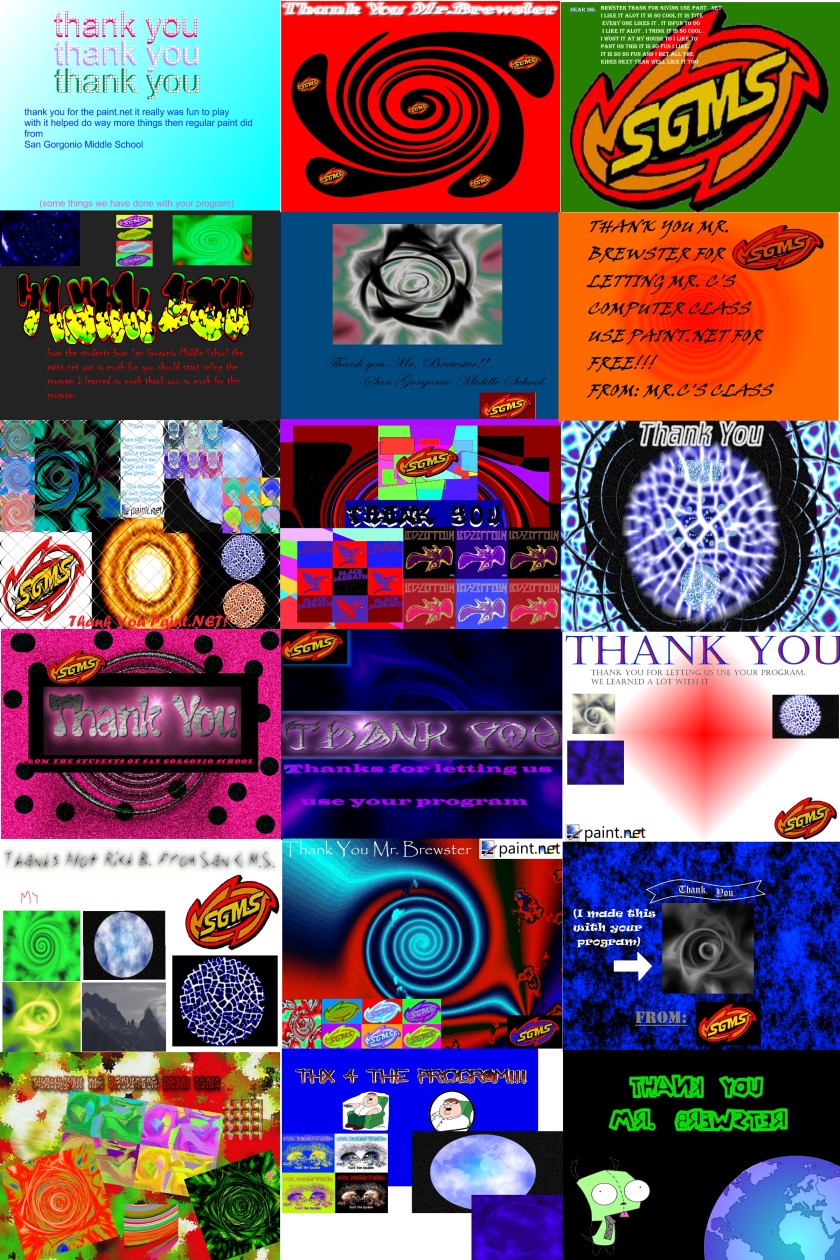
I’ve attached a .jpg “thank you” card from my students (sorry about the large file size).

Matthew Centofranchi
San Gorgonio Middle School
Math & Computers Teacher

Here’s a small preview of the card they attached. You can click it for a larger version. I’m not going to share the full version because it’s 6MB and I don’t want to shred my bandwidth quota for the month J

So, you’re welcome Matthew! I’m glad you and your students had fun and learned a lot with Paint.NET. It’s very rewarding to get an e-mail like this! Now if only the cute girl down at the coffee shop knew what “Paint.NET” was, then I’d be set …

If you have any other “success stories,” feel free to e-mail me (the address is at on the Contact page), or just post a comment to this blog!

* Yes, most people know that Paint.NET is free so it may seem puzzling why Matthew asked permission for his use. But it’s not always clear that this license extends to things like widespread network deployment, business use, or to use at a school with many users (in other words, that Paint.NET is free and not just for personal use). Many employers are skeptical when told that software is “free” and reasonably require some kind of proof, such as an e-mail confirmation from the software publisher (me!). I blame this “not always clear” aspect on the fact that we have to use scary looking software licenses that are written “by lawyers, for lawyers.” Oh and the license is often IN ALL SCARY CAPITALS WITH NO WARRANTIES J

What’s next for Paint.NET?

So version 3.08 is fresh out the door, which means it’s time to start on the next release! The last few releases since v3.0 have mostly been servicing releases (aka “bugfix releases”), with a few features and refinements thrown in for good measure. Service releases are important in order to fix top pain points for users, but it’s also great when some new features are introduced too (even if just a trickle). Not everyone is affected by every bug, so why force everyone to download the fix for it? If I add a trickle of new features or refinements, then everyone is able to benefit from even a +0.01 update. And then I get to go drink beer! It’s a win-win-win scenario.

Anyway, I’m currently planning out the next two major releases: “3.Next” and 4.0.

“3.Next” might end up being named 3.20, and that’s how it’s described on the Roadmap page. The big area I want to focus on in this release is the experience around plugins, for both the user and the developer. I will be creating a new, richer plug-in API (and adapters for old plugins, don’t worry!). The user interface will allow you to install these plugins right from within the application, and to enable / disable them individually without having to muck around in the file system. Users have also been crying out for a way to organize their effects into submenus, and I’m hoping to provide that as well. You’ll also be able to install a plugin just for yourself, or for all users on the system. Maybe I can also provide a way for plugins to be able to check for their own updates and to then invite the user to install them (like Firefox does). I also want to make it much much easier to write UI for Effect plugins. Right now it is a very clumsy experience.

Along with the plugin management, I think it’ll also be very useful for Paint.NET to allow you to configure the file types that it is registered to handle. Right now you essentially have to re-install Paint.NET to get to these options. Granted, these aren’t options that you really need to touch very often, but when you add file type plugins it’s another ballgame: if you install the DDS plugin, how great would it be for Paint.NET to be able to register itself to handle *.DDS? Right now these file type plugins are on their own, and it sucks for the user.

As you may be guessing, this means that “3.Next” will have a Configuration dialog (aka Options, Settings, Preferences, etc.). I have always been fiercely against providing a dialog like this in Paint.NET because they can easily degrade into a buffet of confusing checkboxes, radio buttons, and all sorts of propeller-head idiocy. Sometimes you end up needing a large supplementary manual just for this portion of the user interface. I recommend that you read Jeff Atwood’s Coding Horror blog post from last November, “This Is What Happens When You Let Developers Create UI“. It’s a good read J

The Configuration dialog in “3.Next” will only provide options that really matter. There will not, for example, be a “Tile Cache Size” option, or anything else that requires 3 pages of text to explain. Those are things that the application should be able to optimize itself, and that the user shouldn’t need to give a damn about. The Tool->Choose Defaults and the updater options will also be consolidated here.

Version 4.00 is going to be a whole new ballgame, and is also discussed briefly on the Roadmap page. There are certain areas of Paint.NET that, quite honestly, only work because they have been thoroughly debugged. I have identified three areas that are in need of major overhauls: the data model, the application model, and the image rendering engine. So basically the entire program (oops).

The data model needs to be more resilient to nested actions. Right now the application is given direct access to the data and expected to “do the right thing.” That sort of trust never scales over time, not even on a relatively small project like Paint.NET. I want to move to a more transaction-oriented system, with support for nested and ambient transactions.

The rendering engine right now is pretty simple in Paint.NET, consisting of methods called Render() that are given a target and a region of interest. This works great for linear composition, but nested composition is out of the picture. What if I want to attach a mask or an adjustment to a layer? I can’t do that right now because I don’t have a 3rd rendering buffer, nor do I want to require the memory it takes to do that. So this means the rendering engine must move to working with tiles instead of whole bitmaps (yes, just like every other non-Paint editor out there J). Tiles are generally light weight and can be cached, copied, paged out to disk, paged in to memory, etc.

The application model needs to be refactored so that it separates front-end (user interface) from back-end (logic). This and the data model changes are tightly intertwined, and will provide the foundation for such features as scripting and automation.

That’s enough writing for now. Hopefully this gives some good insight into the direction that Paint.NET is going, both short-term and long-term.
Paint.NET features page — finally updated!

I hadn’t updated the Features page on the Paint.NET website since Paint.NET v2.5 was released way back in November of 2005! So today I took some time to do this, taking into account all the changes that have gone into the program over the last year and a half. I especially make a strong mention of the new tabbed document interface, built-in updater, and the online forum.

So, here’s the refreshed features list, complete with new pictures:

Simple, intuitive, and innovative user interface
Every feature and user interface element was designed to be immediately intuitive and quickly learnable without assistance. In order to handle multiple images easily, Paint.NET uses a tabbed document interface. The tabs display a live thumbnail of the image instead of a text description. This makes navigation very simple and fast.

Layers
Usually only found on expensive or complicated professional software, layers form the basis for a rich image composition experience. You may think of them as a stack of transparency slides that, when viewed together at the same time, form one image.

Active Online Community
Paint.NET has an online forum with a friendly, passionate, and ever-expanding community. Be sure to check out the constantly growing list of tutorials and plugins!

Frequently Updated
Updates usually come about every 4 to 6 weeks, and contain new features, performance improvements, and bug fixes. Upgrading to the latest version is very simple, requiring only two clicks of the mouse.

Special Effects
Many special effects are included for enhancing and perfecting your images. Everything from blurring, sharpening, red-eye removal, distortion, noise, and embossing are included. Also included is our unique 3D Rotate/Zoom effect that makes it very easy to add perspective and tilting.

Adjustments are also included which help you tweak an image’s brightness, contrast, hue, saturation, curves, and levels. You can also convert an image to black and white, or sepia-toned.

Powerful Tools
Paint.NET includes simple tools for drawing shapes, including an easy-to-use curve tool for drawing splines or Bezier curves. The Gradient tool, new for 3.0, has been cited as an innovative improvement over similar tools provided by other software. The facilities for creating and working with selections is powerful, yet still simple enough to be picked up quickly. Other powerful tools include the Magic Wand for selecting regions of similar color, and the Clone Stamp for copying or erasing portions of an image. There is also a simple text editor, a tool for zooming, and a Recolor tool.

Unlimited History
Everybody makes mistakes, and everybody changes their mind. To accommodate this, every action you perform on an image is recorded in the History window and may be undone. Once you’ve undone an action, you can also redo it. The length of the history is only limited by available disk space.

Open Source and Free
Paint.NET is provided free-of-charge, and the source code (all 138,000 lines of it) is also available for free under generous licensing terms. The bulk of Paint.NET is written in C#, with only a small amount of code related to setup and shell-integration written in C++.

Window Clipping 2.0 just released!

If only I had used Window Clippings back in January when I redid the screenshots in the Paint.NET documentation … I would have saved so much time! It has this great ability to capture a window in Windows Vista along with the drop shadow, but without the stuff behind the window. (You know, the blurry stuff.) For example:

The steps to do this before were:

1. Make sure the window is on top of a white background
2. Press Print Screen to capture the whole screen.
3. Paste in to Paint.NET with Ctrl+Alt+V.
4. Crop the image to a large rectangular area that encompasses the window and the drop shadow, but nothing else.
5. Switch to the Magic Wand tool.
6. Make sure the Tolerance is set to 0%.
7. Click on the white area just past the drop shadow.
8. Press Ctrl+I to invert the selection.
9. Press Ctrl+Shift+X to crop the image to the selected area.
10. Create a new layer.
11. Fill the layer with white
12. Move the layer below the “Background” layer
13. Flatten the image
14. Save!

It was a repetetive and error-prone process. But with Window Clippings, this is a much simpler process:

1. Press Ctrl + Print Screen.
2. Double click the window that I care about.
3. Paste it into Paint.NET with Ctrl+Alt+V.
4. Save!

Anyway, Kenny Kerr just announced that the new 2.0 release is available. Looking at the new features, I can immediately see a use for inclusion of the mouse cursor and tooltips in screenshots.